
Introduction
Returndotai Returns allows you to auto-approve return requests and generate the fastest/cheapest prepaid label to speed up the processing of return requests. Streamline your approval process, customize rules, increase efficiency, and enjoy improved turnaround time.
Access this feature
Navigate to /settings/workflowAutomation in your application.
Overview
What is Auto-Approval Automation?
Auto-approval automation eliminates manual intervention for qualifying return requests by automatically approving them and generating prepaid shipping labels based on your custom rules.
- Automatically approve return requests that meet your criteria
- Generate prepaid return labels instantly
- Select fastest or cheapest shipping option automatically
- Reduce processing time from hours to minutes
- Minimize manual workload for your team
- Provide instant confirmation to customers
What Can You Expect from Automation?
Streamlined Approval Process
Experience a seamless and efficient approval process that eliminates the need for manual intervention.
- Automatic processing of qualifying return requests
- No need to manually review each return
- Instant approval for customers meeting criteria
- Reduced bottlenecks in return workflow
- Consistent application of approval rules
Customizable Rules
Tailor the approval criteria and rules to align with your specific business needs and policies.
- Set conditions based on order value, product type, customer history
- Define multiple rules for different scenarios
- Specify return reasons that qualify for auto-approval
- Configure warehouse and logistics preferences
- Choose between fastest or cheapest shipping options
Increased Efficiency
Say goodbye to manual reviews and save valuable time by minimizing intervention in the approval process.
- Free up team time for complex cases
- Process more returns with same resources
- Reduce human error in approval process
- Handle peak return periods smoothly
- Lower operational costs
Improved Turnaround Time
Provide your customers with faster resolutions, resulting in an enhanced experience.
- Instant approval and label generation
- Customers can ship immediately
- Faster refund processing
- Better customer satisfaction scores
- Reduced support inquiries about return status
Enable the Auto Approve Request Feature
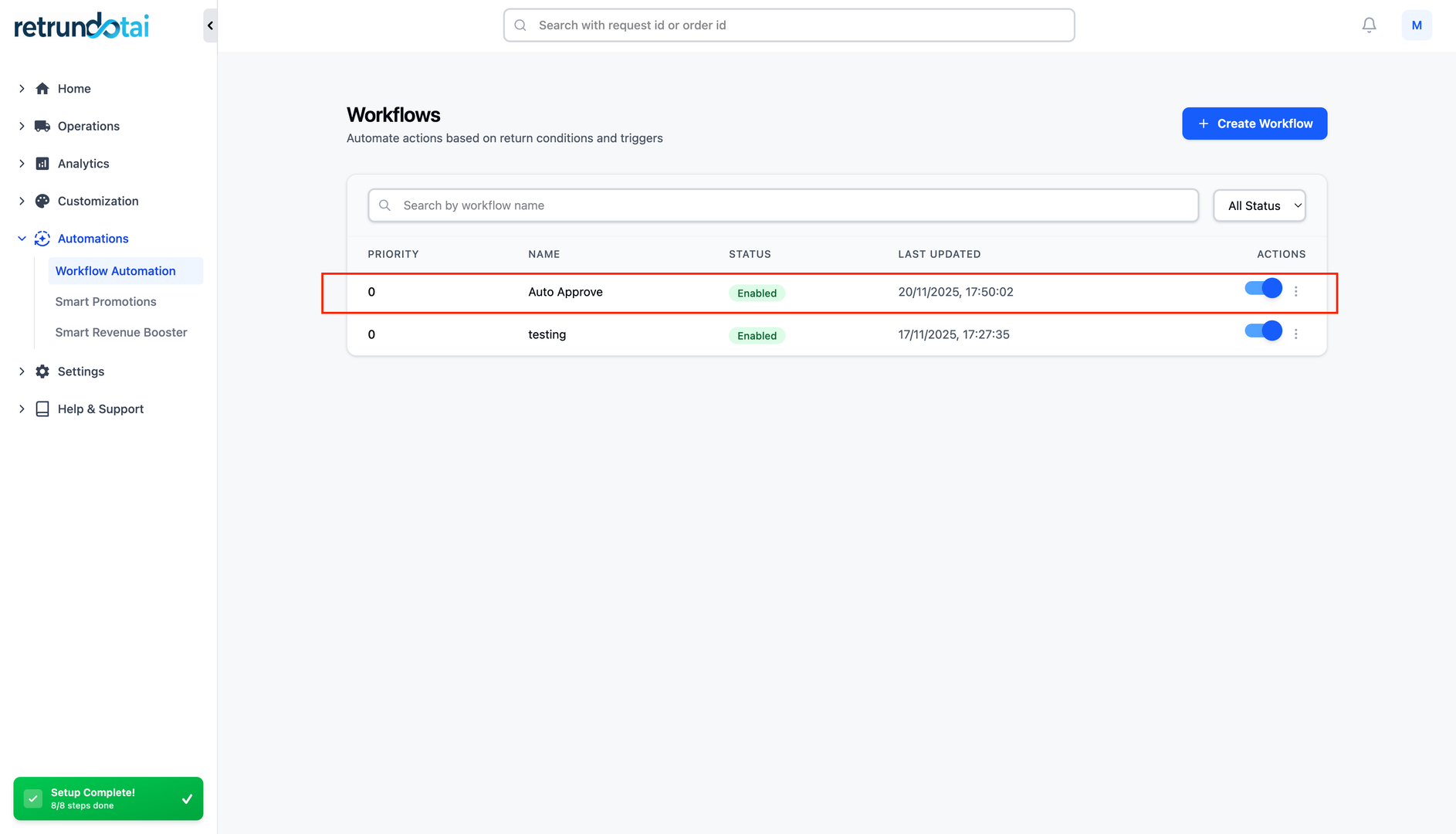
Step 1: Navigate to Automation Settings
To access the Automation section in Returndotai Returns:
- 1Go to Settings > Workflow Automation in Returndotai admin
- 2You'll see the automation rules management page
- 3View existing rules or create new ones
Step 2: Create New Automation Rule
Set up your first automation rule:
- 1Click the "Create new rule" button
- 2Give your rule a descriptive name
- 3Choose the conditions that align with your specific business needs and policies
- 4Configure rule criteria (examples below)
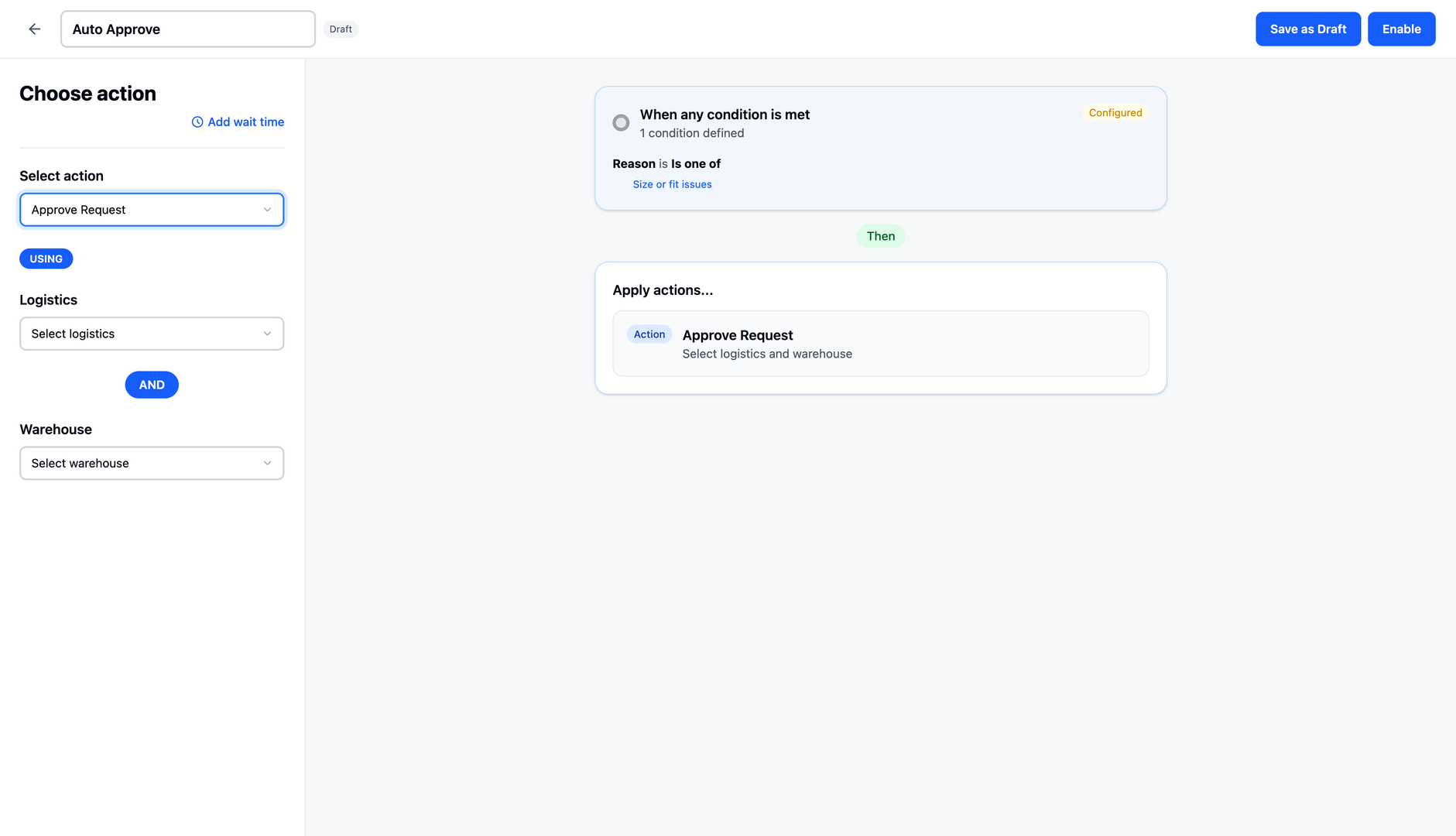
Step 3: Configure Rule Conditions
Define when auto-approval should trigger. Common conditions include:
- Order Value: Auto-approve returns under $100
- Product Type: Specific categories or collections
- Return Reason: Only certain return reasons (e.g., wrong size, changed mind)
- Customer History: Repeat customers with good history
- Time Window: Orders within return window
- Return Method: Only for specific return methods
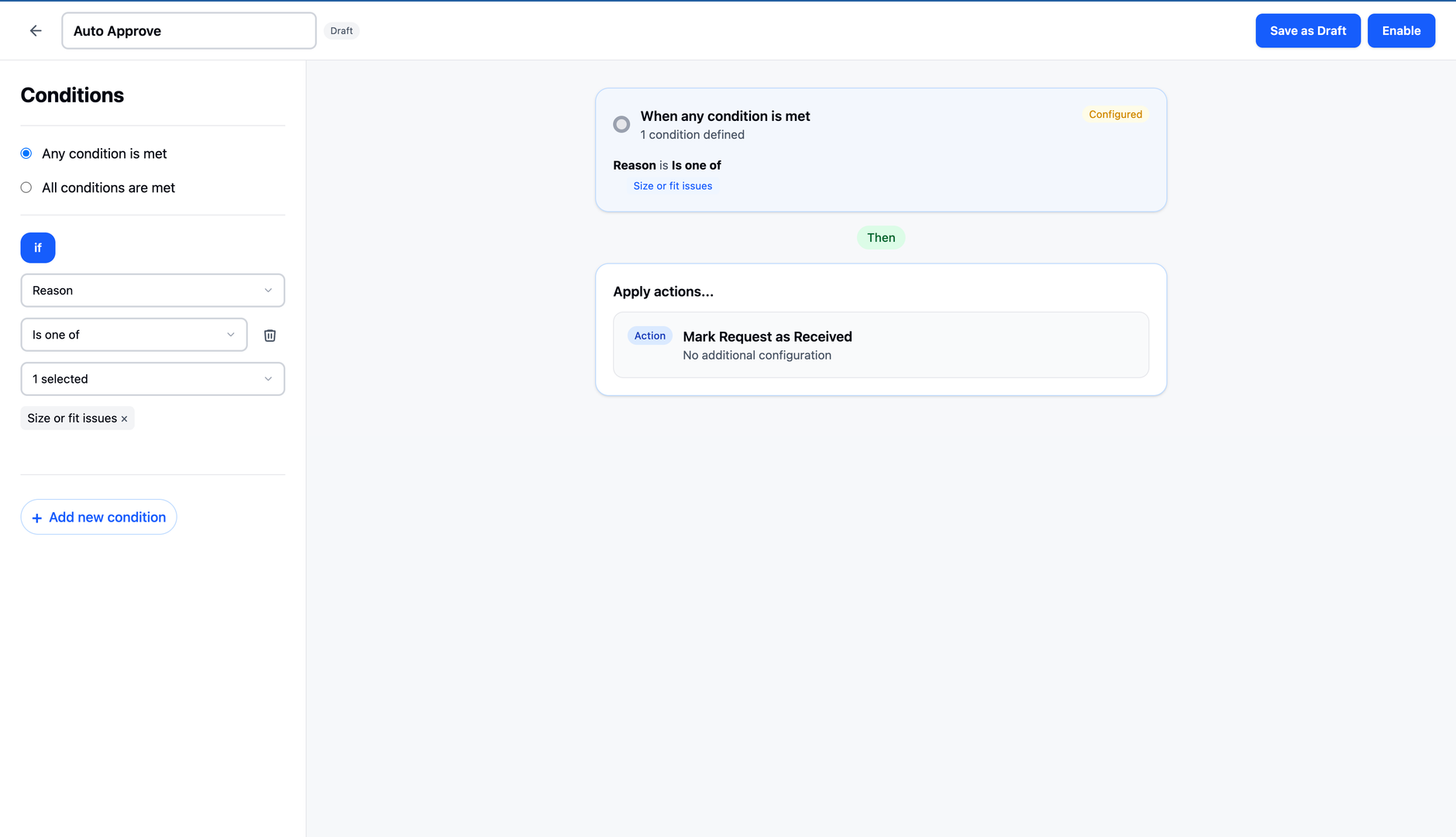
Step 4: Configure Prepaid Label Generation
For prepaid label shipments, ensure your warehouse address and logistics are set; these will be used to automatically generate the label.
- 1In rule configuration, select "Return method"
- 2Choose "Ship with prepaid label"
- 3Fill in the warehouse information:
- 4Warehouse name
- 5Complete return address
- 6Contact information
- 7Select logistics provider from your connected carriers
- 8Choose carrier service option:
- 9Fastest available service
- 10Cheapest available service
- 11Specific service (e.g., USPS Priority Mail)
- 12This activates automatic label generation
Step 5: Finalize and Activate Rule
Complete the rule setup:
- 1Review all configured conditions and settings
- 2Ensure warehouse and logistics information is complete
- 3Click "Create rule" to save and activate
- 4Rule will immediately begin processing new return requests
- 5You can edit or disable rules at any time
How Auto-Approval Works in Practice
Customer Communication Best Practices
Video Tutorial
Best Practices and Tips
Related Articles
Reserve stock on request
Automatically hold inventory when exchange requests are submitted
Return fee condition: Item quantity
Apply return fees based on the number of items being returned
Return/Exchange Fee
Set up and manage return/exchange fees based on return reason or refund resolution
Allow same-variant exchange at current price
Use current store pricing for same-variant exchanges instead of original price