
Introduction
A powerful automation tool that helps you manage returns more efficiently by creating custom rules for different return scenarios, automating return decisions based on specific conditions, and ensuring a consistent customer experience while saving time on manual return processing.
Access this feature
Navigate to /settings/workflowAutomation in your application.
What is Condition-based Workflow?
Overview
Condition-based workflows are intelligent automation rules that streamline your return management process.
- Creating custom rules for different return scenarios
- Automating return decisions based on specific conditions
- Set different time limits (return window) for specific conditions (NEW)
- Ensuring a consistent customer experience
- Saving time on manual return processing
- Flexible rule configuration for any business need
When Should You Use Workflows?
High-Volume Returns Handling
Perfect for businesses processing many returns:
- Automate common return scenarios
- Process returns faster without manual review
- Maintain consistent service quality at scale
- Reduce team workload on repetitive decisions
- Handle peak return seasons efficiently
Region-Specific Return Policies
Customize policies based on customer location:
- Set different rules by geographical zones
- Customize return methods by location
- Manage international returns effectively
- Comply with regional regulations
- Offer region-appropriate refund options
Product-Specific Return Rules
Tailor policies for different product types:
- Different policies for various product types
- Special handling for specific collections
- Custom rules for individual SKUs
- Category-based return windows
- Product tag-based automation
Return Window-Specific Return Rules (NEW)
Configure time-based policies for better control:
- Different time limits for various product types
- Special handling for specific customer segments
- Seasonal return window adjustments
- Order fulfillment date-based rules
- Order creation date-based rules
- Order delivery date-based rules
Setting Up Your First Workflow
Step 1: Plan Your Rule
Before creating, consider these key questions:
- 1What triggers the rule? (conditions)
- 2Product attributes (type, collection, tags, SKU)
- 3Return details (reason, zone)
- 4Time-based factors (order dates)
- 5What should happen? (actions)
- 6Allowed return/exchange types
- 7Available return methods
- 8Refund resolutions
- 9Policy restrictions
- 10Rule priority in your overall return process
- 11How specific is this rule?
- 12Does it conflict with other rules?
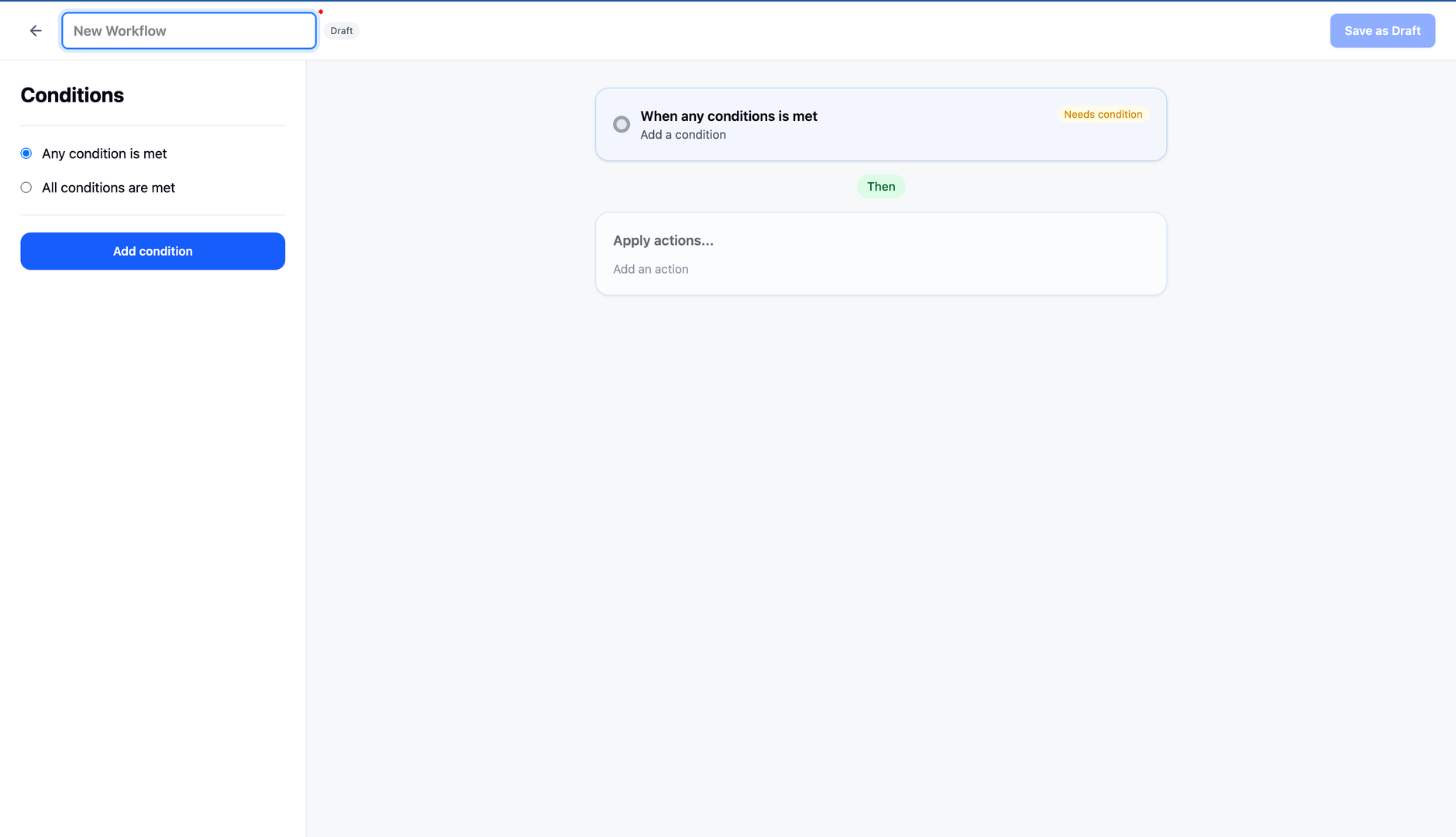
Step 2: Create Basic Structure
Set up the foundation of your workflow rule:
- 1Go to Settings → Workflow Automation
- 2Click "Create workflow" button
- 3Name your rule descriptively
- 4Use clear names: "EU Returns - Standard" or "Luxury Items - Exchange Only"
- 5Avoid vague names like "Rule 1" or "Test"
- 6Choose condition logic:
- 7ANY: Rule triggers if any condition matches
- 8ALL: Rule triggers only if all conditions match
Step 3: Set Smart Conditions
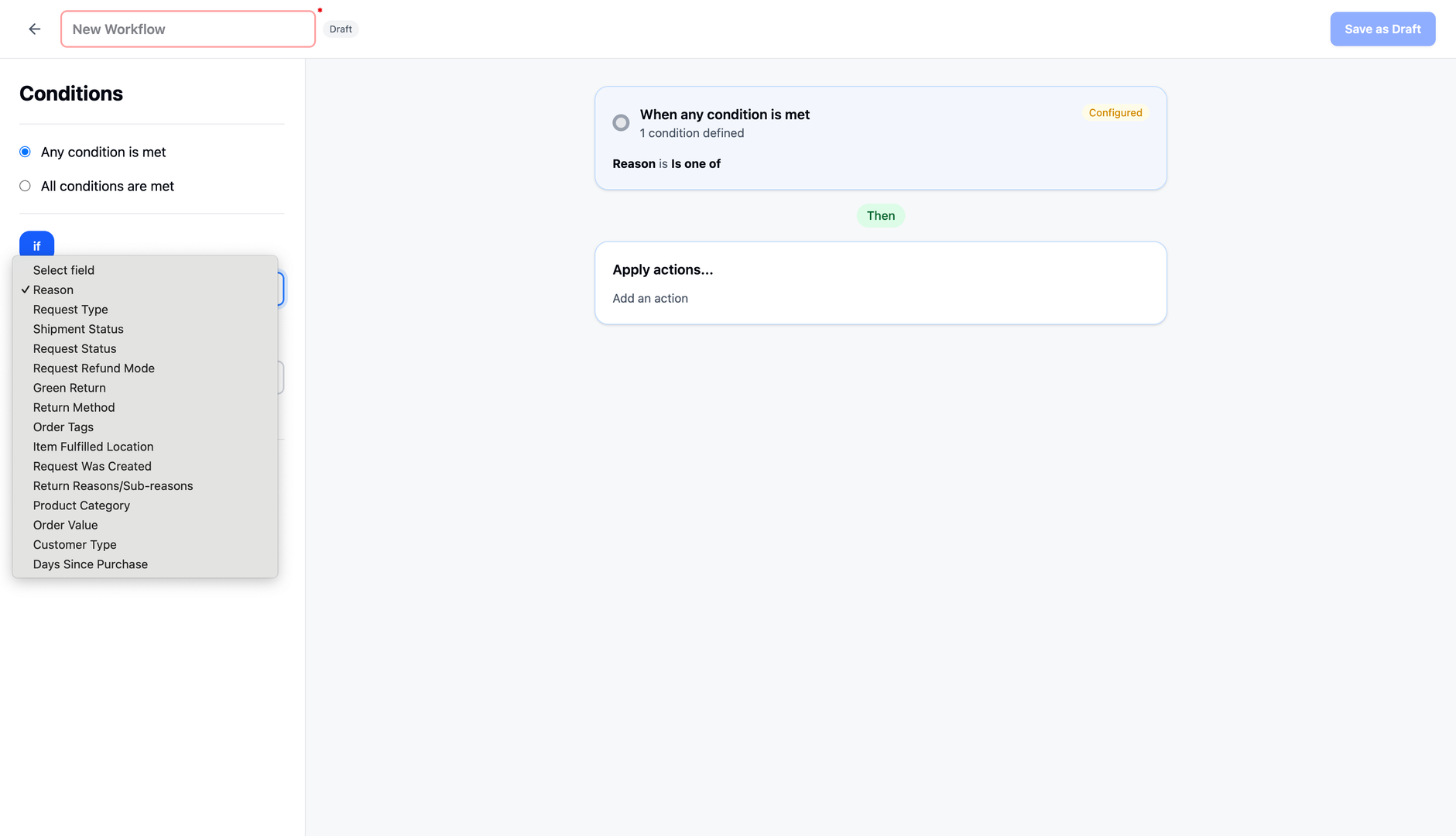
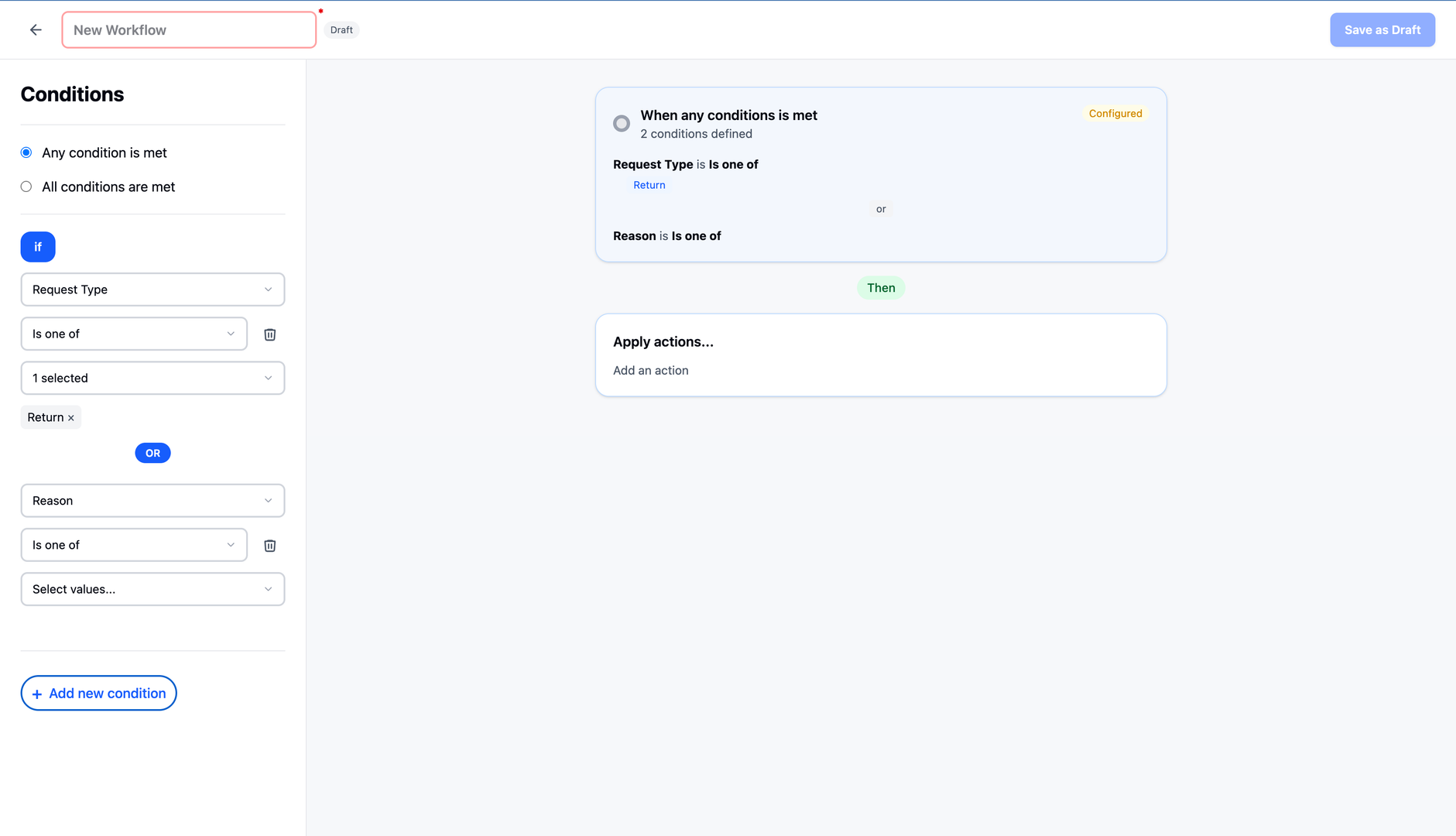
Choose conditions based on your business needs:
- Product details:
- Product Type (e.g., Clothing, Electronics)
- Product Tags (e.g., Clearance, Limited Edition)
- Product Collections (e.g., Summer 2024)
- Product SKU (specific products)
- Return information:
- Return Reason (e.g., Wrong Size, Changed Mind)
- Return Zone (e.g., North America, Europe)
- Time-based conditions (NEW):
- Order Created Date
- Order Fulfillment Date
- Order Delivery Date
Pro Tip: Condition Strategy
Start with broader conditions and refine based on results
- 1Begin with general categories (e.g., "Product Type = Clothing")
- 2Monitor how the rule performs
- 3Add more specific conditions if needed (e.g., "+ Product Tag = Designer")
- 4Avoid overly complex conditions initially
- 5Test rules before enabling for all customers
Step 4: Define Actions
Select appropriate actions that will apply when conditions are met:
- Show Return or Exchange Type:
- Return only
- Exchange only
- Both return and exchange
- Show Return Method:
- Ship with pre-paid label
- Ship with any carrier
- No shipment required
- Return to store location
- Show Resolution:
- Original payment method
- Store credit
- Gift card
- Discount code
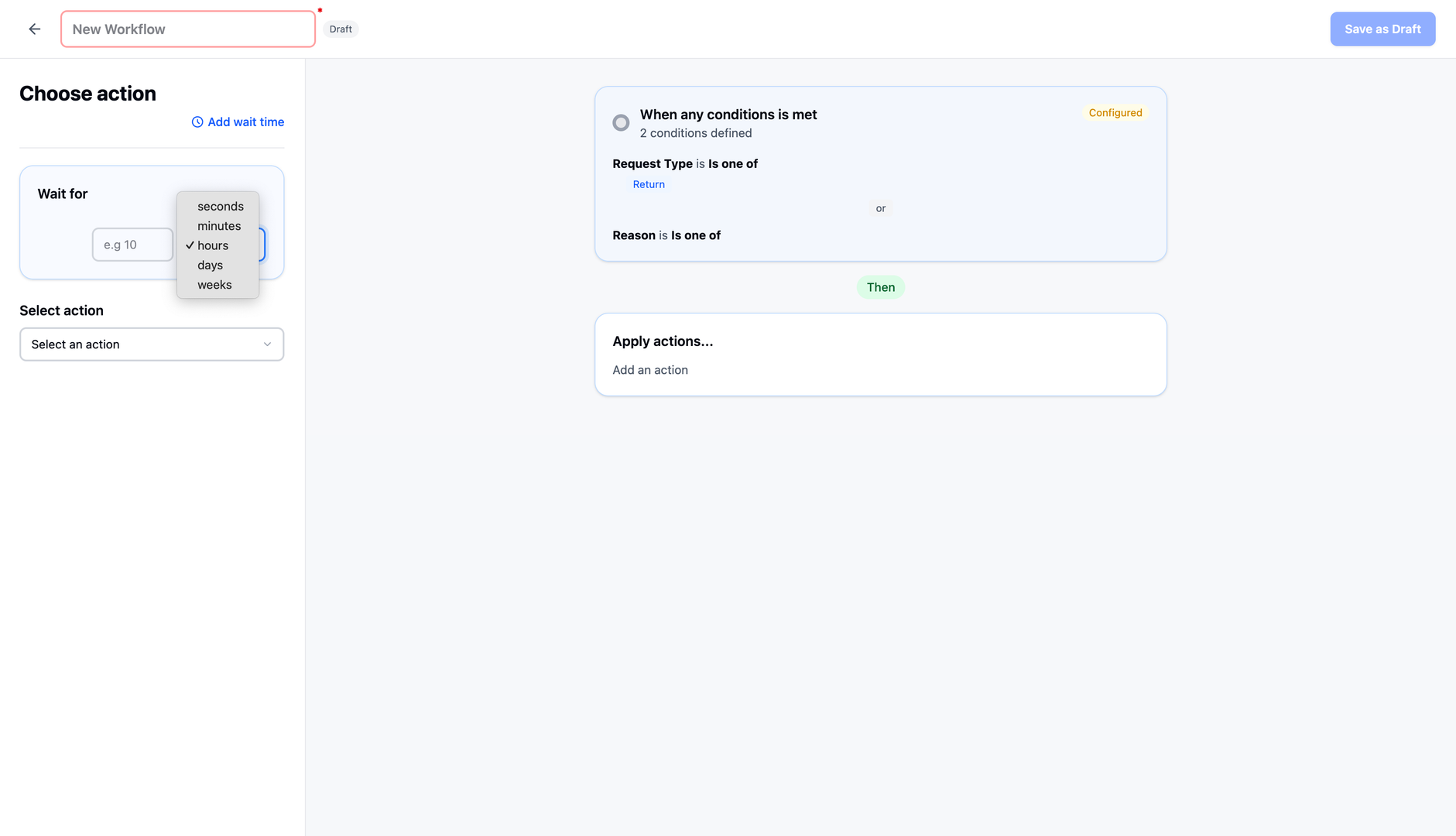
- Set Specific Policy (NEW):
- Order fulfillment: Prevent requests after X days from fulfillment
- Order delivery: Prevent requests after X days from delivery
- Order created: Prevent requests after X days from order creation
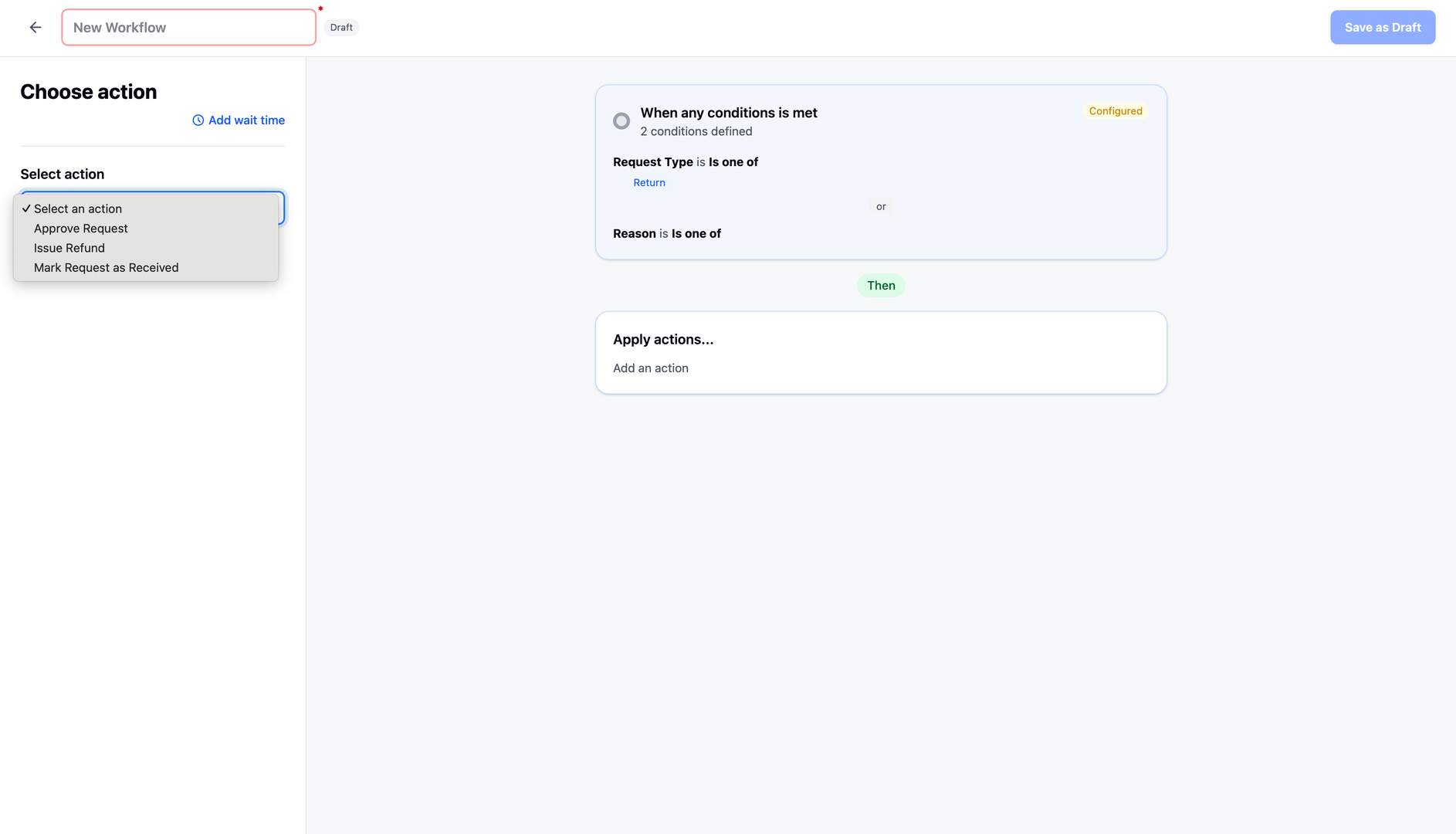
Important: Enable Actions in Settings
Ensure all selected actions are enabled in Settings before creating the workflow.
- 1Check Settings → Return/Exchange flow
- 2Verify return methods are enabled
- 3Confirm refund resolutions are configured
- 4Enable any return types you want to use
- 5Actions disabled in Settings won't work in workflows
Advanced Usage Tips
Priority Management
Understanding rule priority is crucial for effective automation:
- More specific rules → Higher priority
- Example: "SKU = ABC123" ranks higher than "Product Type = Clothing"
- General rules → Lower priority
- Catch-all rules should be at the bottom
- Regular review of rule order
- Check monthly for conflicts
- Adjust priorities as needed
- Maximum 20 rules – use them wisely
- Combine similar rules when possible
- Remove outdated rules
- Keep rule list manageable
Rule Limit Strategy
With a maximum of 20 rules, strategic planning is essential:
- 1Group similar scenarios into single rules when possible
- 2Use "ANY" logic to combine multiple conditions
- 3Prioritize high-impact rules
- 4Archive or delete unused seasonal rules
- 5Document each rule's purpose for future reference
- 6Review rule effectiveness quarterly
Common Scenarios and Solutions
Seasonal Returns
Configure workflows for seasonal products with specific return windows:
Holiday Items
Example workflow for holiday collections:
- 1IF: Product Collection = "Holiday 2025"
- 2THEN:
- 3Set order fulfillment: Prevent request from order fulfillment is greater than 14 days
- 4Resolution: Refund to gift card
Summer Collection
Example workflow for end-of-season returns:
- 1IF: Product Collection = "Summer 2024"
- 2AND Return Reason = "End of Season"
- 3THEN:
- 4Set order created: Prevent request from order created is greater than 14 days
- 5Resolution: Refund to Store Credit
International Returns
Manage returns from different geographical regions:
European Returns
Example workflow for EU customers:
- 1IF: Return Zone = "Europe"
- 2THEN:
- 3Action Type: Return
- 4Resolution: Refund by Online Bank Transfer
- 5Method: Ship with any carrier
High-Value Items
Special handling for premium products:
Luxury Products
Example workflow for high-end items:
- 1IF: Product Tag = "Luxury"
- 2THEN:
- 3Action Type: Exchange
- 4Method: Ship with pre-paid label
Size/Fit Issues
Streamline exchanges for sizing problems:
Apparel Exchange
Example workflow for clothing sizing:
- 1IF: Product Type = "Clothing"
- 2AND Return Reason = "Wrong Size"
- 3THEN:
- 4Action Type: Exchange
- 5Resolution: Exchange for different size or color
- 6Method: Ship with pre-paid label
Collection-Specific Rules
Manage special collections differently:
Limited Edition Items
Example workflow for exclusive products:
- 1IF: Product Tag = "Limited Edition"
- 2OR Product Collection = "Designer Collaboration"
- 3THEN:
- 4Resolution: Refund to Store Credit
Best Practices
Rule Organization
Keep your workflows manageable and effective:
- Keep rules simple and focused
- One primary purpose per rule
- Avoid combining too many conditions
- Use clear, descriptive names
- Include key condition and action in name
- Example: "EU-Electronics-14DayWindow"
- Document rule purposes
- Add notes explaining why rule exists
- Note who requested or approved it
- Review and update regularly
- Monthly rule audits
- Remove obsolete rules
- Update for seasonal changes
Optimization Strategy
Continuous improvement approach:
- 1Start with basic rules
- 2Implement 3-5 essential rules first
- 3Cover your most common scenarios
- 4Monitor results
- 5Track which rules trigger most often
- 6Measure customer satisfaction impact
- 7Check for unintended consequences
- 8Adjust based on data
- 9Refine conditions that aren't working
- 10Modify actions based on feedback
- 11Add complexity gradually
- 12Layer in more specific rules over time
- 13Test each addition thoroughly
Maintenance Tips
Regular upkeep ensures workflows stay effective:
- Regular rule review (monthly)
- Check all active rules
- Verify they still serve their purpose
- Remove unused rules
- Delete rules with zero triggers
- Archive seasonal rules when not applicable
- Update seasonal rules
- Change dates for new seasons
- Adjust collections and tags
- Check for disabled methods
- Verify all actions still work
- Re-enable any disabled features
Troubleshooting Guide
Common Issues and Solutions
Resolve workflow problems quickly with these solutions:
Issue: Rule Not Triggering
When a workflow rule doesn't activate as expected:
- 1Check priority order
- 2Higher priority rules may be matching first
- 3Adjust rule priority if needed
- 4Verify conditions
- 5Ensure condition values match exactly
- 6Check for typos in tags, collections, SKUs
- 7Verify "ANY" vs "ALL" logic is correct
- 8Ensure actions are enabled
- 9Go to Settings and verify methods/resolutions are active
- 10Enable any disabled options
Issue: Conflicting Rules
When multiple rules compete or produce unexpected results:
- 1Review priority settings
- 2Check order of rules in workflow list
- 3Most specific should be highest priority
- 4Check overlapping conditions
- 5Identify rules with similar conditions
- 6Determine which should take precedence
- 7Adjust rule specificity
- 8Add more conditions to narrow down matches
- 9Use "ALL" logic for more precise targeting
Issue: Disabled Actions
When workflow actions aren't available:
- 1Check Settings configuration
- 2Go to Settings → Return/Exchange flow
- 3Verify return methods are enabled
- 4Check refund resolutions are active
- 5Update rule actions
- 6Remove disabled actions from rule
- 7Replace with available alternatives
- 8Enable required methods
- 9Activate needed methods in Settings
- 10Configure any required integrations
Key Features
Custom Automation Rules
Create up to 20 custom workflow rules for different return scenarios
Flexible Conditions
Base rules on product details, return reasons, zones, and time windows
Time-Based Policies (NEW)
Set different return windows based on order creation, fulfillment, or delivery dates
Priority Management
Control rule order with automatic priority for more specific conditions
Multiple Actions
Define return types, methods, resolutions, and policies in each rule
ANY/ALL Logic
Choose whether any condition or all conditions must match for rule activation
Important Notes
Start Simple, Build Complexity
Begin with 3-5 basic rules covering your most common scenarios. Monitor results and gradually add more specific rules based on actual patterns you observe.
Maximum 20 Rules
You can create a maximum of 20 workflow rules. Plan strategically and combine similar scenarios into single rules using "ANY" logic when possible.
Enable Actions in Settings First
Before creating workflows, ensure all return methods and refund resolutions you want to use are enabled in Settings → Return/Exchange flow. Disabled options won't work in workflows.
Use Descriptive Names
Name rules clearly to indicate their purpose: "EU-Luxury-PrepaidLabel" is better than "Rule 3". This makes management and troubleshooting much easier.
Understand Priority Order
More specific rules automatically get higher priority. A rule for "SKU = ABC123" will trigger before "Product Type = Electronics" for that specific product.
Review Rules Monthly
Set a monthly reminder to review all active workflows. Remove unused rules, update seasonal configurations, and adjust priorities based on performance data.
Test Before Full Deployment
Create test return requests to verify your workflows trigger correctly before enabling them for customers. Check both the conditions and actions.
Document Your Rules
Add notes to each workflow explaining its purpose, who requested it, and any special considerations. This helps with future maintenance and team handoffs.
Use Time Windows Strategically (NEW)
Different products may need different return windows. Use order fulfillment date for standard items, but order created date for clearance items to prevent extended returns.
Watch for Rule Conflicts
If unexpected behavior occurs, check for overlapping conditions between rules. Use the troubleshooting guide to identify and resolve conflicts.
Related Articles
Reserve stock on request
Automatically hold inventory when exchange requests are submitted
Return fee condition: Item quantity
Apply return fees based on the number of items being returned
Return/Exchange Fee
Set up and manage return/exchange fees based on return reason or refund resolution
Allow same-variant exchange at current price
Use current store pricing for same-variant exchanges instead of original price