
Introduction
The pagination feature lets you navigate and view between requests directly from the detail page, so you don't need to go back to the list view each time. It will reduce the time you spend managing and approving a large volume of submitted return requests. This powerful navigation tool streamlines your workflow and improves efficiency when processing multiple returns.
Access this feature
Navigate to /returns in your application.
Pagination Overview
How Pagination Works
The pagination system allows you to move through return requests sequentially without returning to the main list view. Navigate between previous and next requests while maintaining your current filter settings.
- 1View return requests in the management list with your selected filters
- 2Click on any request to open the detail page
- 3Use pagination controls to navigate to the next or previous request
- 4Pagination respects your filter settings - only shows requests matching your filters
- 5Process multiple requests efficiently without losing your place
Using Management Filters
Step 1: Apply Management Filters
Before using pagination, set up your filters to show only the requests you want to process. The pagination will respect these filters and only navigate through matching requests.
- 1Navigate to the Returns Management page
- 2Use the filter options to narrow down your request list
- 3Filter by status (Pending, Approved, Rejected, etc.)
- 4Filter by date range, customer name, or order number
- 5The filtered list will be the basis for pagination navigation
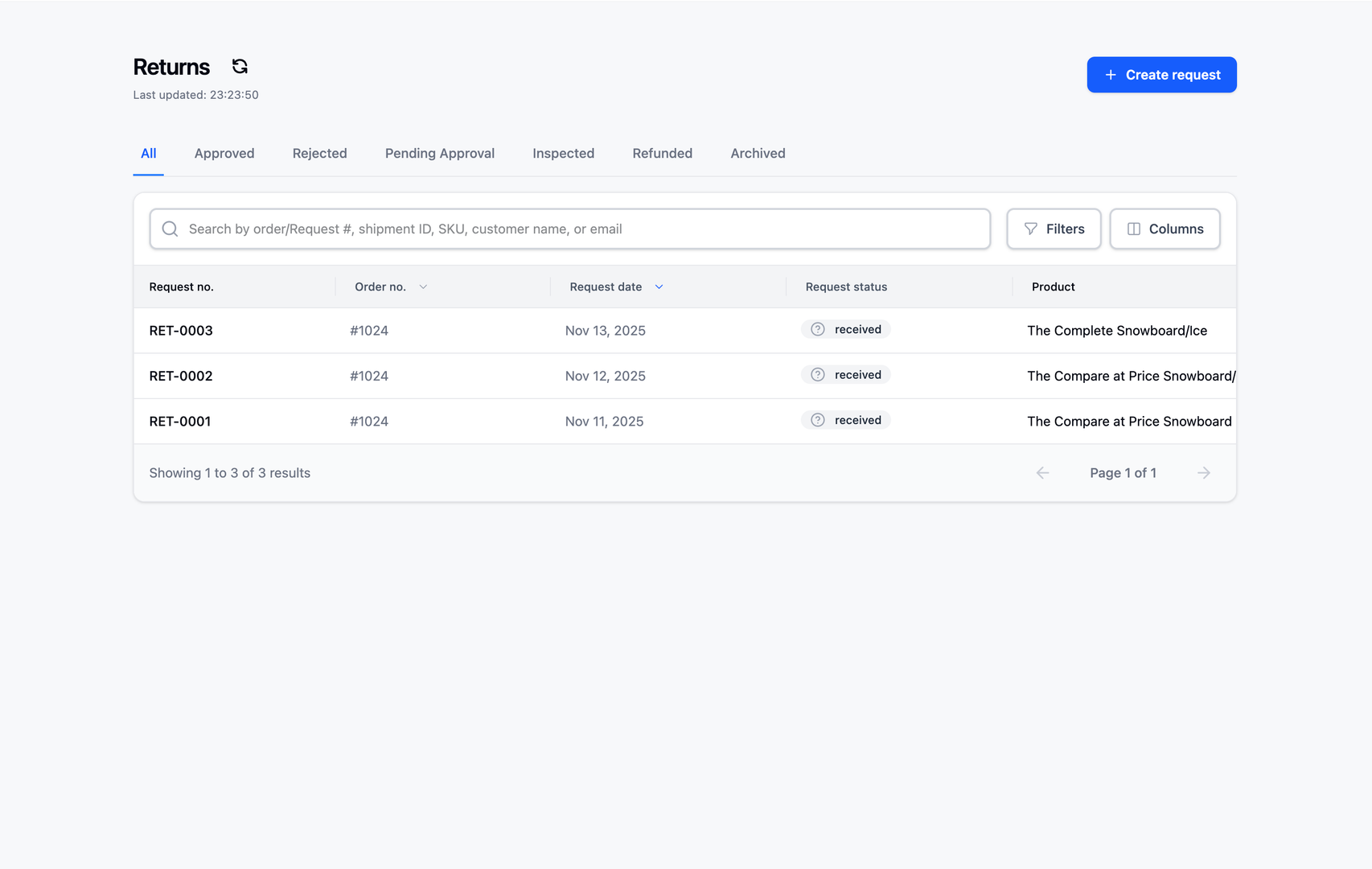
Pagination Navigation Controls
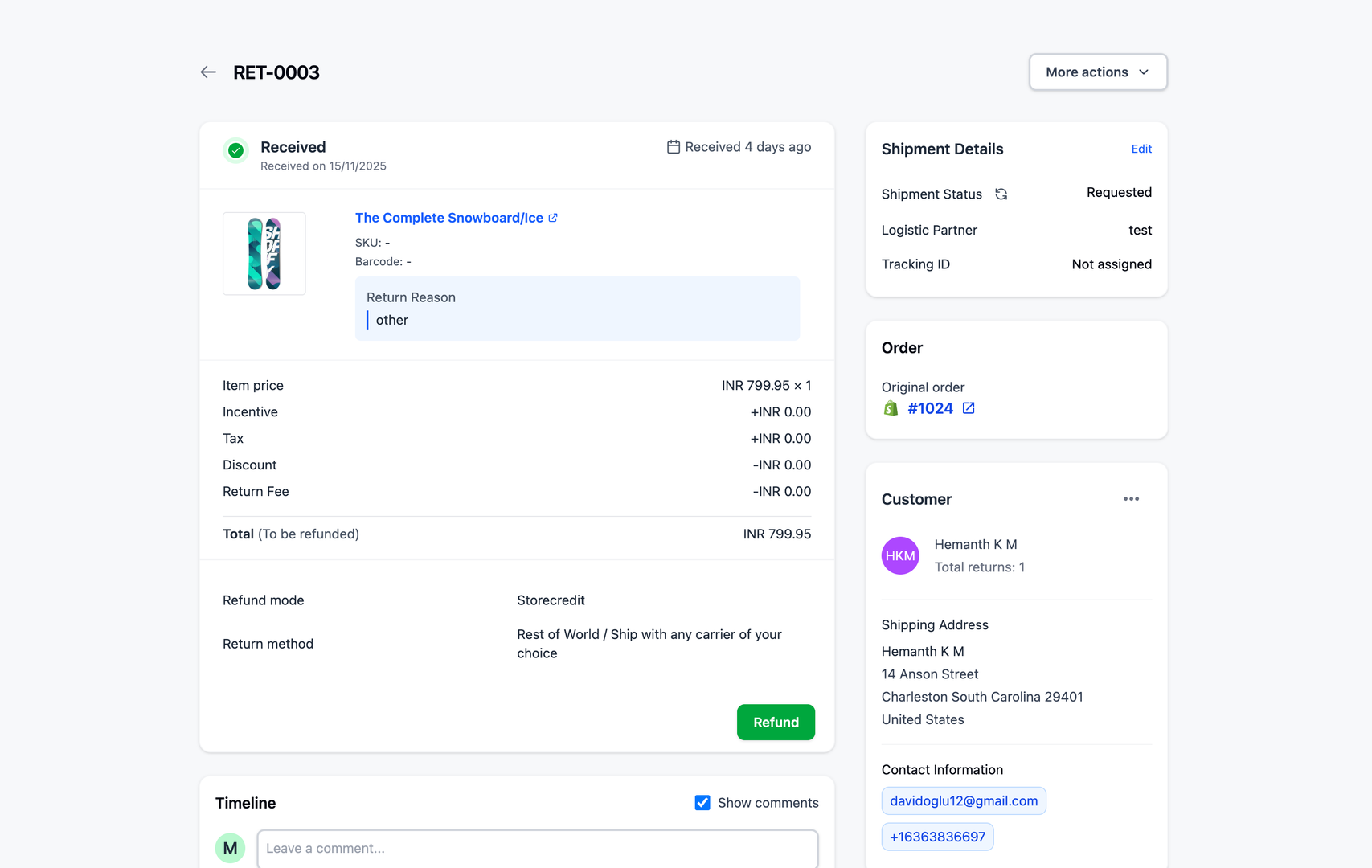
Step 2: Pagination Button Preview
Once you open a return request detail page, you'll see pagination controls that allow you to navigate between requests without going back to the list.
- 1Open any return request from your filtered list
- 2Look for the pagination buttons (usually arrows) on the detail page
- 3Previous button (←) navigates to the previous request in your filtered list
- 4Next button (→) navigates to the next request in your filtered list
- 5Buttons are disabled when you reach the first or last request
Step 3: Hover to Preview Next/Previous Request
When you hover over the pagination buttons, you can see a preview of the previous or next order that matches the same status filter. This helps you know what request you'll navigate to before clicking.
- 1Hover your mouse over the Previous (←) button
- 2A tooltip or preview will appear showing the previous order details
- 3Preview includes order number, customer name, and status
- 4Hover over the Next (→) button to see the next order preview
- 5Only shows orders that match your current filter settings
Step 4: Navigate to Exact Order
Click the pagination button to instantly navigate to the exact order shown in the preview. The page will load the full details of that request.
- 1After previewing the next/previous order, click the button
- 2The page will navigate to that specific return request
- 3All request details will load instantly
- 4Your filter settings remain active
- 5Continue using pagination to process multiple requests efficiently
Building an Efficient Workflow
Recommended Workflow Strategy
Use pagination strategically to process high volumes of return requests efficiently.
- 1Filter requests by status (e.g., "Pending Approval")
- 2Start with the first request in the filtered list
- 3Review and take action (Approve/Reject/Request Info)
- 4Click Next to move to the next pending request
- 5Repeat until all filtered requests are processed
- 6Change filters to process different categories of requests
Time-Saving Tips
Process requests in batches by status to maintain focus
- Use hover preview to quickly assess the next request before navigating
- Combine filters (status + date range) to create focused work queues
- Keyboard shortcuts may be available for faster navigation
- Mark requests for follow-up if you need more information before deciding
Filter Persistence and Navigation
How Filters Stay Active
The pagination system maintains your filter context as you navigate between requests, ensuring you only see requests that match your criteria.
- Filter: Status = "Pending" → Pagination only shows pending requests
- Filter: Date = "Last 7 days" → Pagination limited to recent requests
- Filter: Customer = "John Doe" → Pagination shows only that customer's requests
- Multiple filters combine → Pagination respects all active filters
Changing Filters Mid-Navigation
If you need to change your filters while reviewing requests, you can return to the main list, adjust filters, and resume pagination with the new filter set.
- 1Click "Back to List" or navigate to the management page
- 2Adjust your filter settings
- 3Open a request from the newly filtered list
- 4Pagination now reflects the new filter criteria
Best Practices
Batch Processing Strategies
Process all "Pending Approval" requests in one session
- Review all requests from the last 24 hours together
- Handle high-priority customers in a dedicated batch
- Process similar request types together (same product, same reason)
- Set aside complex cases for later, continue with straightforward ones
Avoiding Common Mistakes
Always check the hover preview before clicking to avoid navigating to the wrong request
- Don't forget to save changes before using pagination to move to the next request
- Be aware when you reach the last request in your filtered list
- Remember that pagination is filter-dependent - changing filters resets the navigation context
- Use browser back button carefully - it may not maintain your filter state
Key Features
Seamless Navigation
Move between return requests without returning to the list view
Hover Preview
See order details before navigating to the next or previous request
Filter Awareness
Pagination respects your active filters and only shows matching requests
Time-Saving
Process large volumes of requests faster with continuous workflow
Visual Indicators
Clear buttons and disabled states show when you reach the first or last request
Context Preservation
Maintains your position and filter settings as you navigate
Important Notes
Best Practice
Always set up your filters before starting pagination to create an efficient workflow queue. Process requests in batches by status or priority.
Important Note
The pagination only shows requests that match your current filter settings. If you change filters, you'll need to start from a new request in the filtered list.
Efficiency Tip
Use the hover preview feature to quickly assess whether the next request needs immediate attention or can be skipped for later review.
Save Before Navigating
Always save any changes to the current request before using pagination to navigate away, or your changes may be lost.
Keyboard Navigation
Check if keyboard shortcuts are available for pagination (e.g., arrow keys) to navigate even faster without using the mouse.
Related Articles
How to resend notification in management details
Manually resend email notifications to customers from the order management detail page
How return notifications are sent
Understand the email notification flow for return and exchange requests
How to prevent return request from specific date range
Set order date range policies to restrict returns during specific periods
Refund to Store Credit
Issue refunds as store credit to retain revenue while providing customer flexibility