
Introduction
The Resend Notification feature empowers merchants to manually resend email notifications to shoppers directly from the return detail or exchange detail page. This feature is particularly useful for handling failed email deliveries, resending confirmations upon customer request, or sending notifications that were previously skipped. You can resend notifications directly from the timeline list by selecting the resend button next to any previously sent notification.
Access this feature
Navigate to /returns in your application.
Key Capabilities
What You Can Do
The resend notification feature provides several powerful capabilities for managing email communications:
- Resend any previous email: Send any email that was previously sent or failed to send
- Timeline integration: Resend emails directly from the timeline
- Timeline updates: Automatically updates timeline with resend actions
- Error recovery: Easily recover from failed email deliveries
- One-click resend: Quick resending without additional steps
How to Resend Notifications from Timeline
Overview
Resend notifications directly from the timeline list on the return detail or exchange detail page. Each notification entry in the timeline has its own resend button for quick one-click resending of previously sent emails.
Step 1: Locate the Timeline Section
Scroll down to the timeline section on the return detail or exchange detail page. The timeline shows a chronological list of all actions and notifications related to this order.
- 1Navigate to the return detail or exchange detail page
- 2Scroll down to the "Timeline" section
- 3Review the list of previously sent notifications
Step 2: Select Resend from Timeline Entry
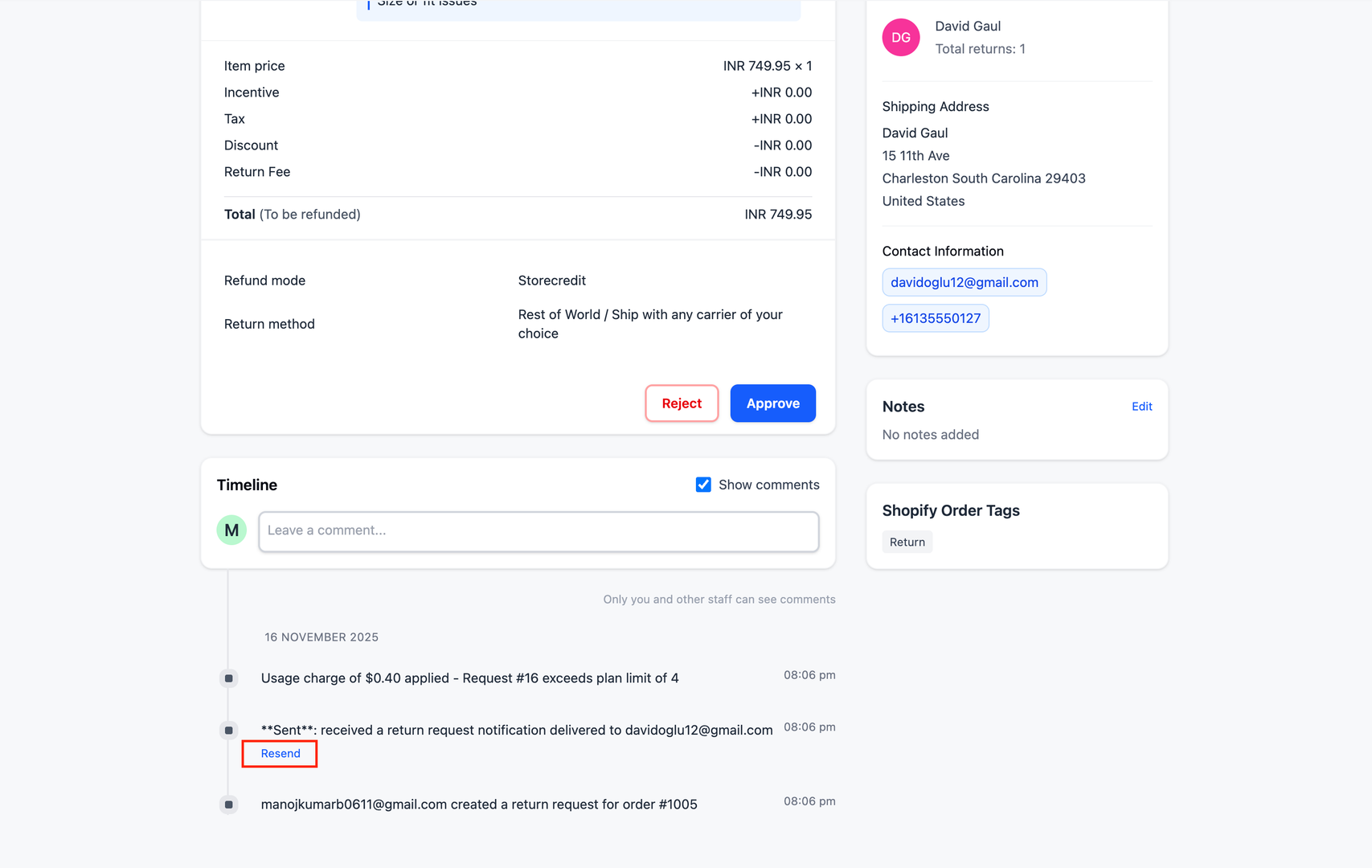
Each notification entry in the timeline list has its own resend button. Click the resend button next to the specific notification you want to resend.
- 1Find the notification entry in the timeline list
- 2Look for the resend icon/button next to the notification
- 3Click the resend button for that specific notification
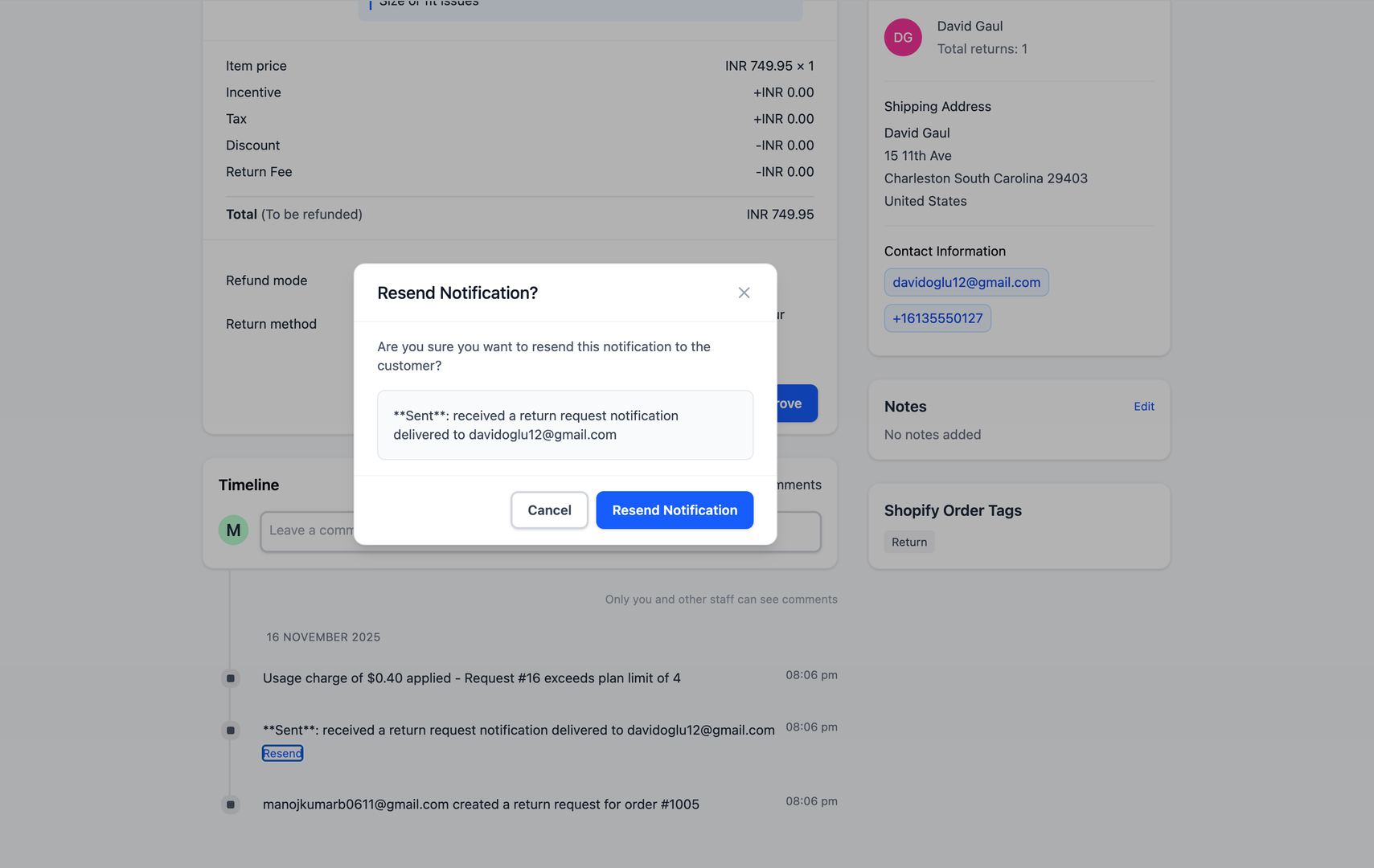
- 4The notification will be resent immediately with the same content
Step 3: Verify Resend Action
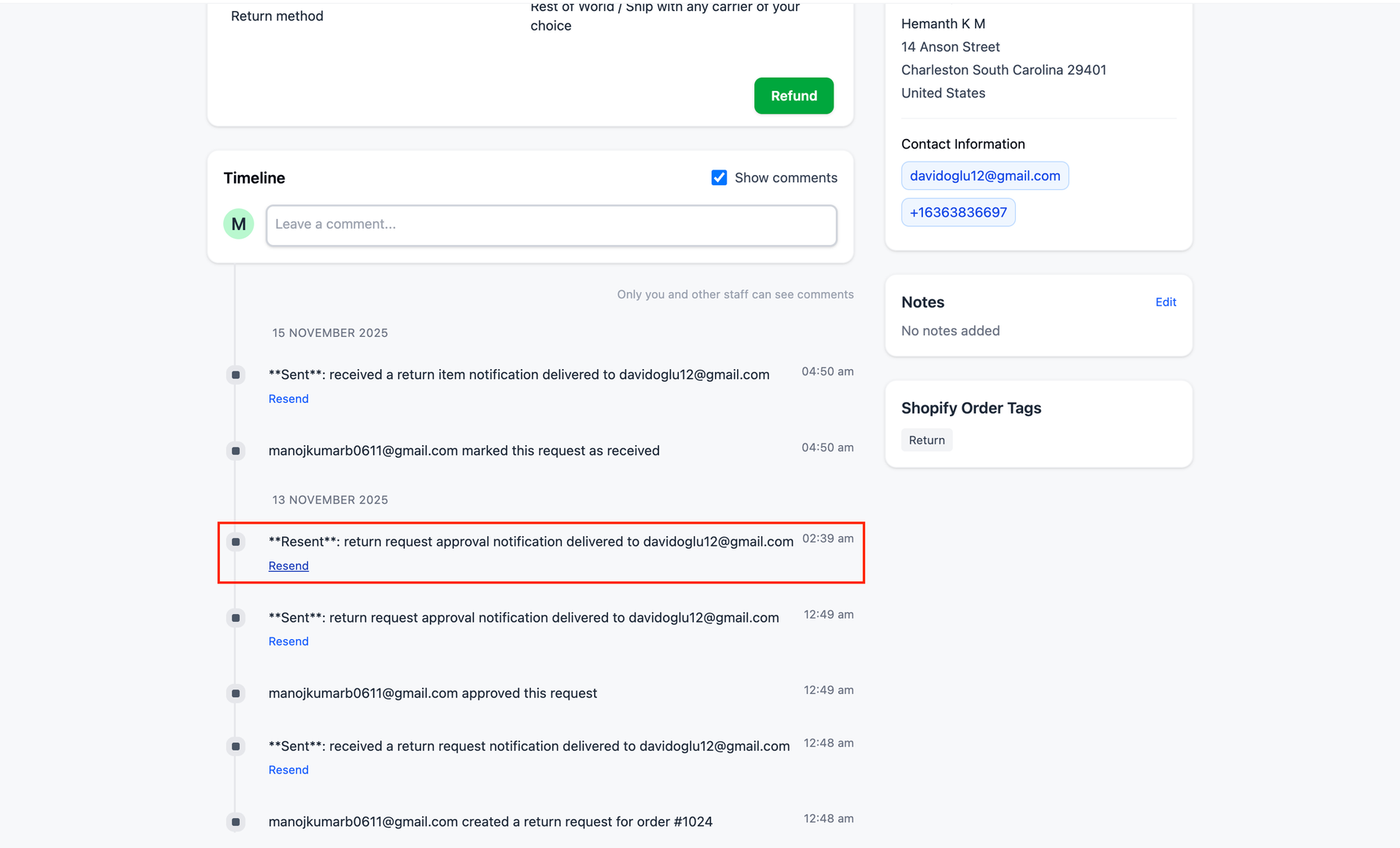
After clicking the resend button from the timeline, the system will immediately resend the notification and add a new entry to the timeline confirming the resend action.
- 1Check for a success message or confirmation
- 2Look for a new timeline entry showing the resend action
- 3Verify the timestamp of the resent notification
Timeline Integration
Preview Emails from Timeline
You can also preview previously sent emails directly from the order timeline without needing to resend them.
- 1Scroll to the timeline section on the order details page
- 2Locate the email notification entry you want to review
- 3Click on the email entry to preview its content
- 4View the full email that was sent to the customer
Automatic Timeline Updates
Every time you resend a notification, the action is automatically logged in the timeline with a timestamp and details about which notification was resent.
- 1After resending a notification, check the timeline
- 2Look for the new entry indicating the resend action
- 3View details including timestamp, notification type, and recipient
Important Notes and Limitations
When Resend is Available
The resend notification feature is only available for emails that meet specific criteria to ensure system integrity and prevent spam.
- 1The notification template must be enabled in your notification settings
- 2The email must have been sent at least once before
- 3The original email must have a valid recipient address
- 4You must have the appropriate permissions to resend notifications
Resend notification availability note
Screenshot showing the note about resend notification availability
Troubleshooting Common Issues
If you encounter problems with the resend notification feature, try these solutions:
- If you don't see the resend option: Check that the notification template is enabled in Settings > Notifications
- If the email preview is empty: Verify that the notification was sent previously
- If the send button is disabled: Ensure the customer has a valid email address on file
- If emails continue to fail: Check your email service provider settings and spam filters
Key Features
One-Click Resend from Timeline
Quickly resend specific notifications with a single click from the timeline list
Direct Access from Timeline
Each notification entry in the timeline has its own resend button for instant access
Timeline Tracking
All resend actions are automatically logged in the order timeline with timestamps
Error Recovery
Easily recover from failed email deliveries or technical issues
Works on Returns & Exchanges
Available on both return detail and exchange detail pages
Customer Service Tool
Perfect for handling customer requests for confirmation emails
Important Notes
Important Note
Resend notification will be only available for the emails you enabled in notification templates and they were sent at least once before.
Quick One-Click Resend
Use the resend button directly from the timeline list for instant resending. The notification will be sent immediately with the same content as the original.
Customer Communication
When a customer requests a confirmation email, use the timeline resend feature rather than manually forwarding emails to maintain proper tracking and branding.
Spam Warning
Avoid resending the same notification multiple times in a short period, as this may trigger spam filters or annoy customers.
Available on Both Pages
The resend notification feature works identically on both return detail and exchange detail pages, making it easy to resend notifications regardless of the request type.
Check Timeline History
Before resending, review the timeline to see when the notification was last sent and avoid duplicate sends.
Related Articles
How return notifications are sent
Understand the email notification flow for return and exchange requests
How to manage return request with pagination
Efficiently browse and filter return requests using pagination controls
How to prevent return request from specific date range
Set order date range policies to restrict returns during specific periods
Refund to Store Credit
Issue refunds as store credit to retain revenue while providing customer flexibility