
Introduction
Store Credit in Returndotai Returns & Exchanges enables merchants to offer refunds as store credit, helping retain revenue while providing customers flexibility for future purchases. This powerful feature allows you to incentivize customers to continue shopping with your store rather than receiving cash refunds, while also offering bonus credit as an additional incentive.
Access this feature
Navigate to /settings/policies in your application.
Setup and Configuration
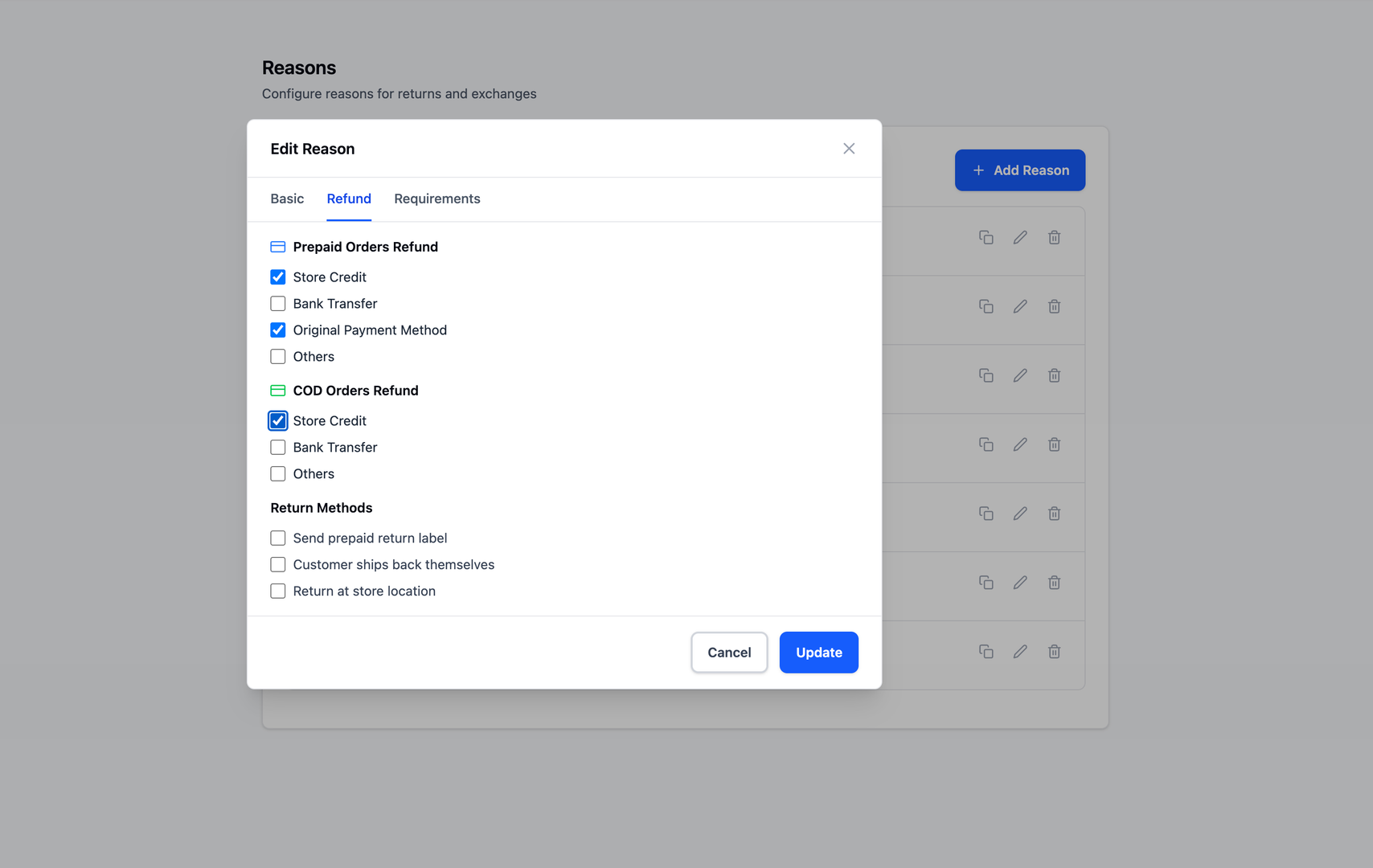
Step 1: Enable Store Credit in Returndotai
First, you need to enable the store credit refund option in your Returndotai settings.
- 1Go to Settings > Reasons in your Returndotai dashboard
- 2Find the "Refund to Store Credit" option
- 3Enable the "Refund to Store Credit" toggle
- 4Add description text (optional) - This text will be shown to customers
- 5Configure bonus credit amount:
- 6Set to 0 if no bonus desired
- 7Enter a value (amount or percentage) for additional incentive
- 8Click "Save" to apply changes
Step 2: Enable Store Credit in Shopify
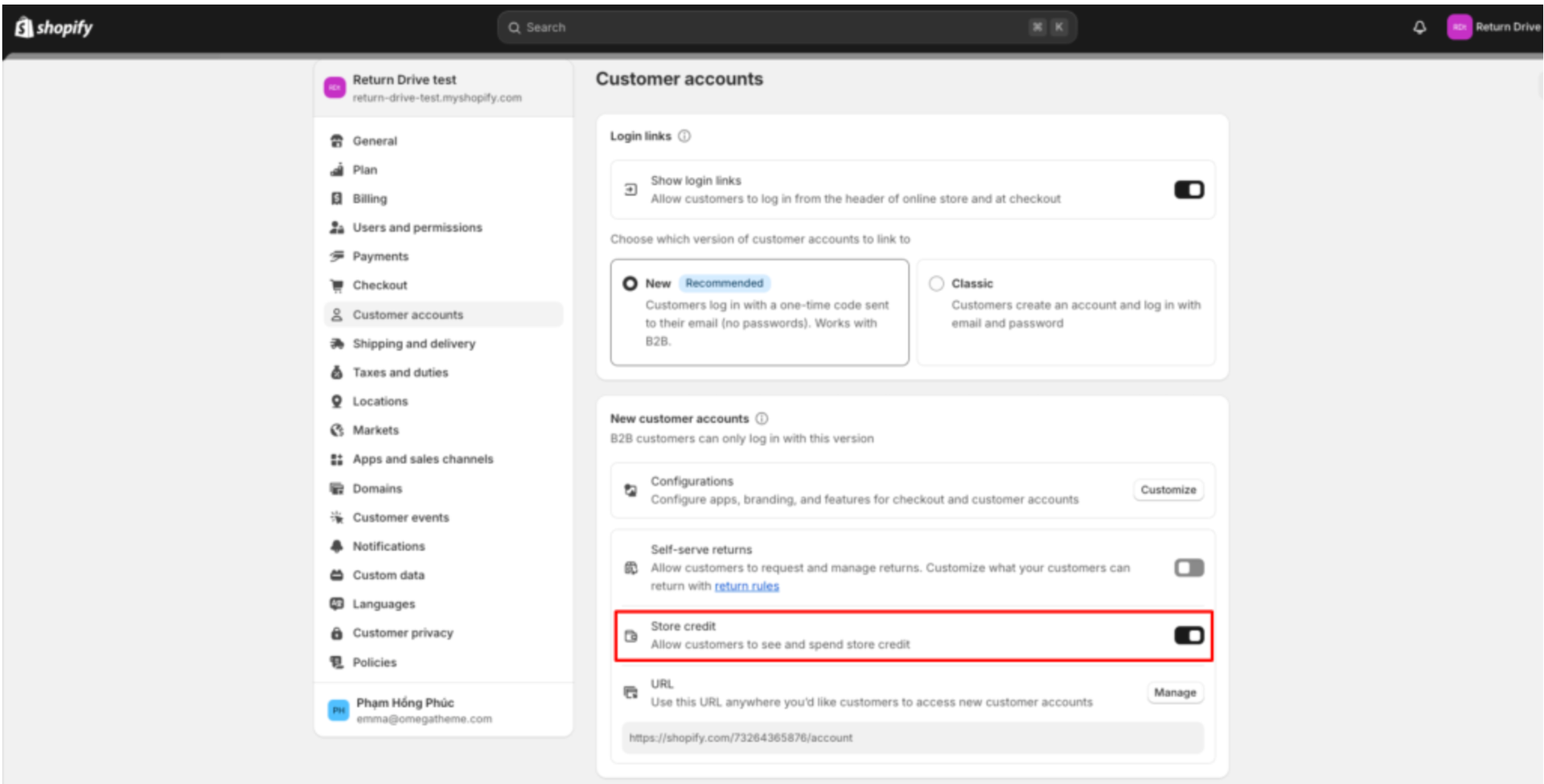
After enabling in Returndotai, you must also enable store credit in your Shopify store settings.
- 1Navigate to Settings > Customer accounts in Shopify admin
- 2In the "New customer accounts" section, find the "Store credit" option
- 3Enable the "Store credit" toggle
- 4Ensure proper staff permissions are set:
- 5Store credit permission (enabled)
- 6Edit store credit permission (enabled)
For Classic Customer Accounts
If you use classic customer accounts instead of new customer accounts, follow these additional steps.
- 1In Shopify admin, go to Settings > Customer accounts > URL
- 2Copy the URL that gives customers access to new customer accounts
- 3Provide this URL to your customers
- 4Let customers know they must log in using this specific link to use their store credit
Step 3: Update Required Shopify Permissions
Returndotai requires specific Shopify API permissions to manage store credit on your behalf.
- 1Ensure the following permissions are granted:
- 2Write store credit account transactions
- 3Read store credit account transactions
- 4If permissions are not set, Returndotai will notify you when issuing store credit
- 5Click "Update permissions" in the notification to grant access
- 6Approve the permission update in Shopify

How It Works
In the Returns Portal (Customer View)
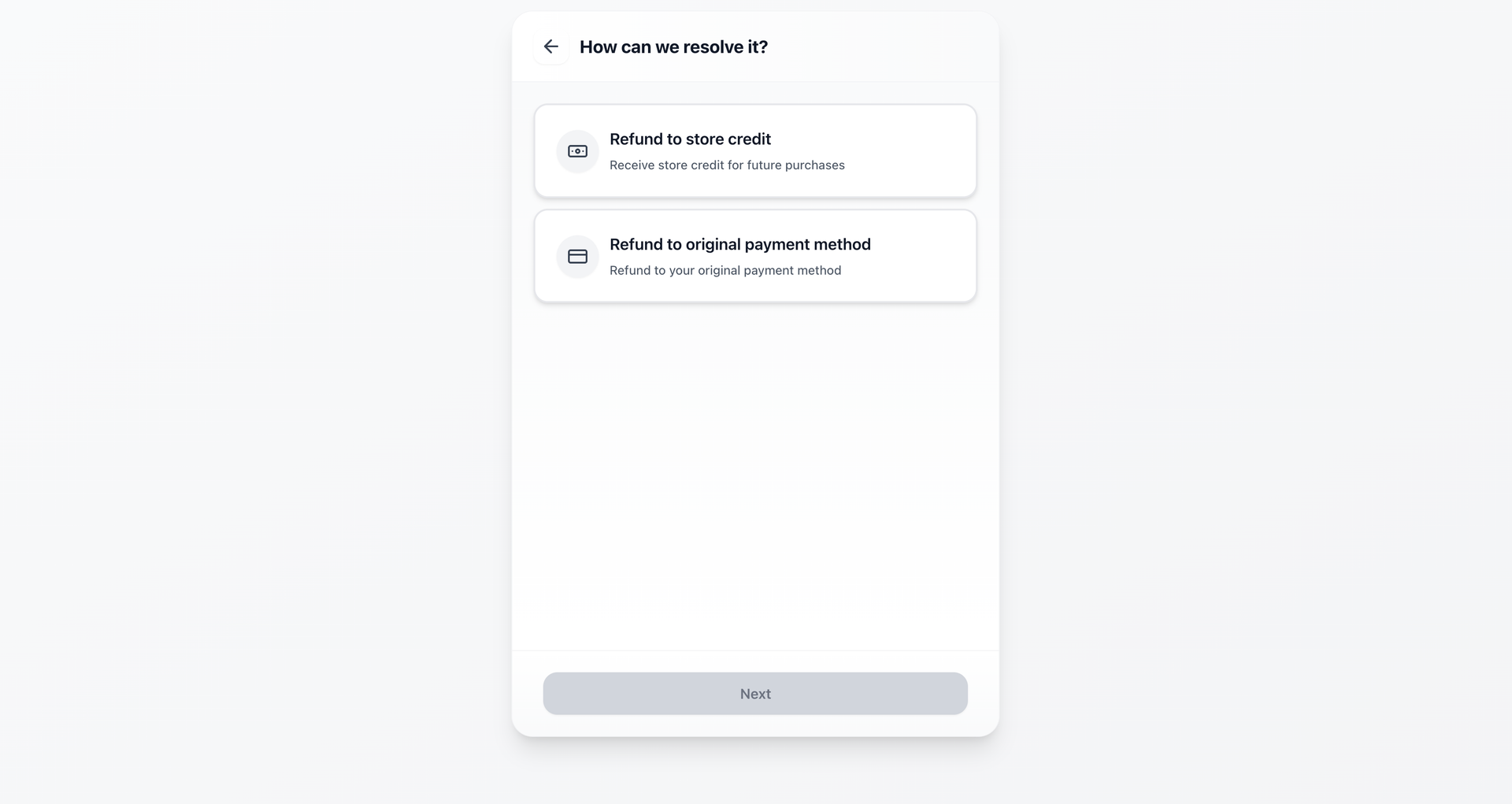
When customers initiate a return and select store credit as their refund method, they see the total refund value including any bonus credit you've configured.
- 1Customer selects "Refund to Store Credit" option
- 2Portal shows total refund value
- 3Displays base refund amount
- 4Shows bonus credit amount (if configured)
- 5Customer sees combined total store credit they will receive
- 6Customer confirms and submits return request
Bonus Credit Calculation
If you enable refund to store credit and set up a bonus amount, the customer will receive additional credit based on the subtotal price.
- Example: Original refund = $100, Bonus = 10%
- Base store credit: $100
- Bonus credit: $10 (10% of $100)
- Total store credit issued: $110
- Customer incentivized to shop again with extra $10
In Returndotai Admin (Merchant View)
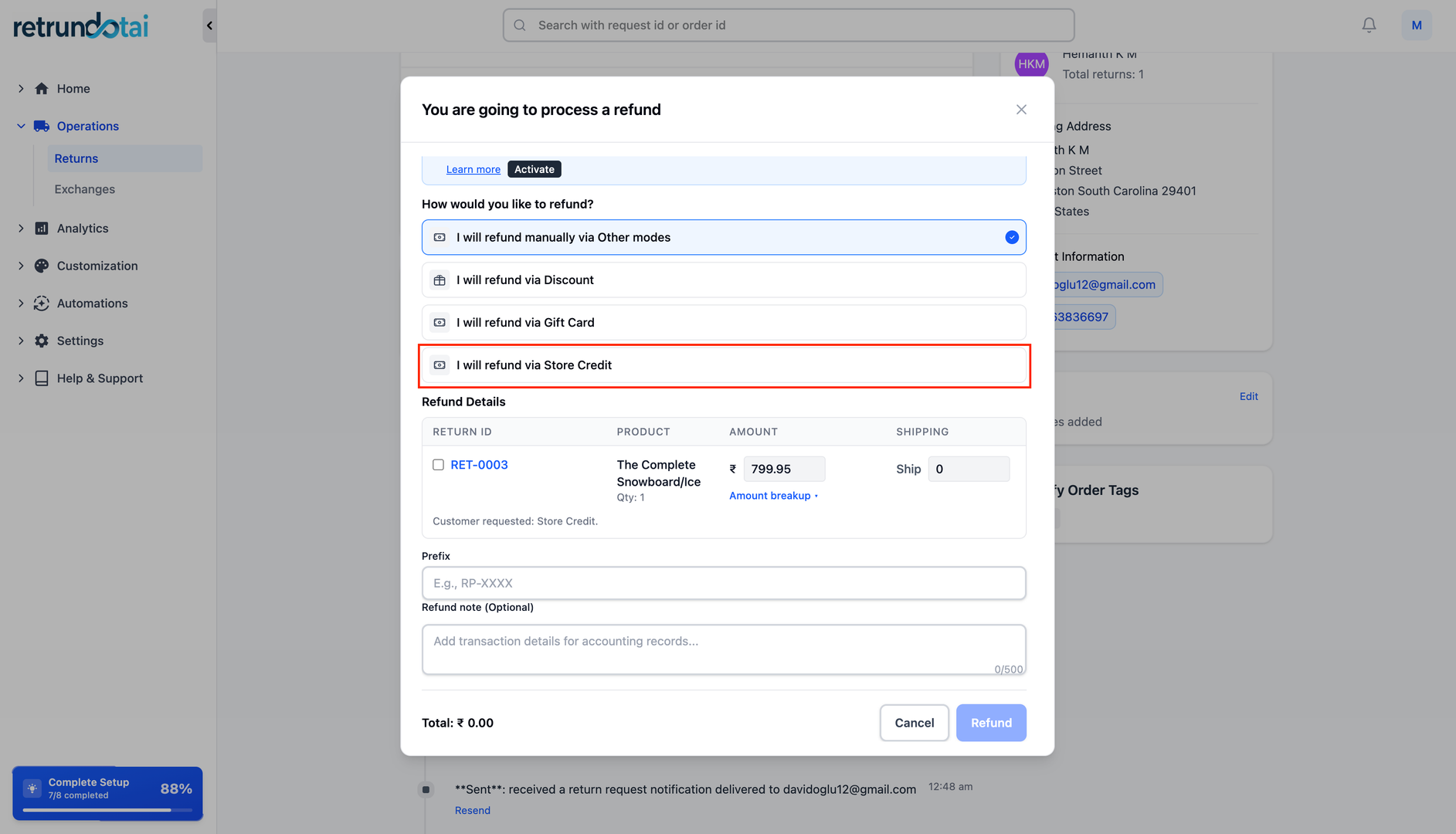
As a merchant, you can view and manage store credit refunds directly in the Returndotai admin panel.
- 1View "Refund to Store Credit" as the resolution of the return request
- 2See the total credit amount including bonus
- 3After approving the request, click "Issue Store Credit"
- 4Returndotai processes the store credit in Shopify
- 5Upon successful issuance, you'll see:
- 6Credit balance display
- 7Link to customer's store credit in Shopify admin
- 8Track all store credit refunds in the management dashboard
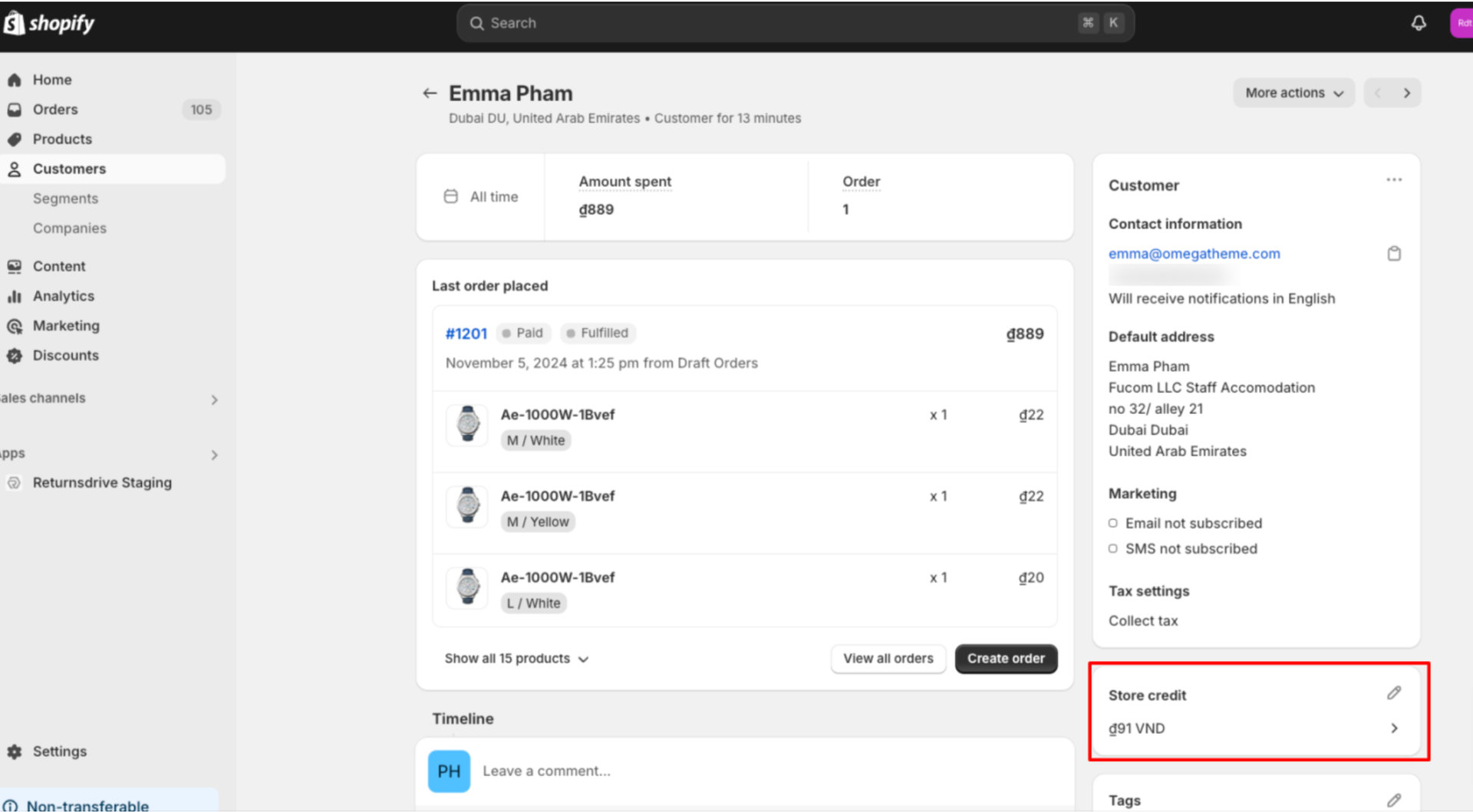
In Shopify Admin
Store credit issued through Returndotai is fully integrated with Shopify's native store credit system.
- 1Go to Customers and select a customer in Shopify admin
- 2Find and open the Store Credit from the list
- 3Look for the entry ending with digits matching the one generated in Returndotai
- 4In Store Credit Details, you will see:
- 5Timeline with all changelogs from when store credit was added
- 6Note on the right explaining issuer (Returndotai Returns)
- 7Credit amount and current balance for this customer
- 8View complete transaction history
Customer Experience
Using Store Credit at Checkout
When a customer has store credit available and is logged into their new customer account on your store, the value displays at checkout in the Store credit section.
- 1Customer adds items to cart and proceeds to checkout
- 2While logged in, store credit section appears automatically
- 3Shows available store credit balance
- 4Customer can select "Apply store credit" to use it as payment
- 5Store credit is applied to order total
- 6Any remaining balance after purchase is retained for future use
Viewing Store Credit Balance
Customers can easily check their store credit balance in their account.
- 1Customer logs into their customer account
- 2Goes to Profile section
- 3Scrolls down to Payment method section
- 4Store credit balance is displayed
- 5Shows transaction history of credits earned and used
Email Notification for Store Credit
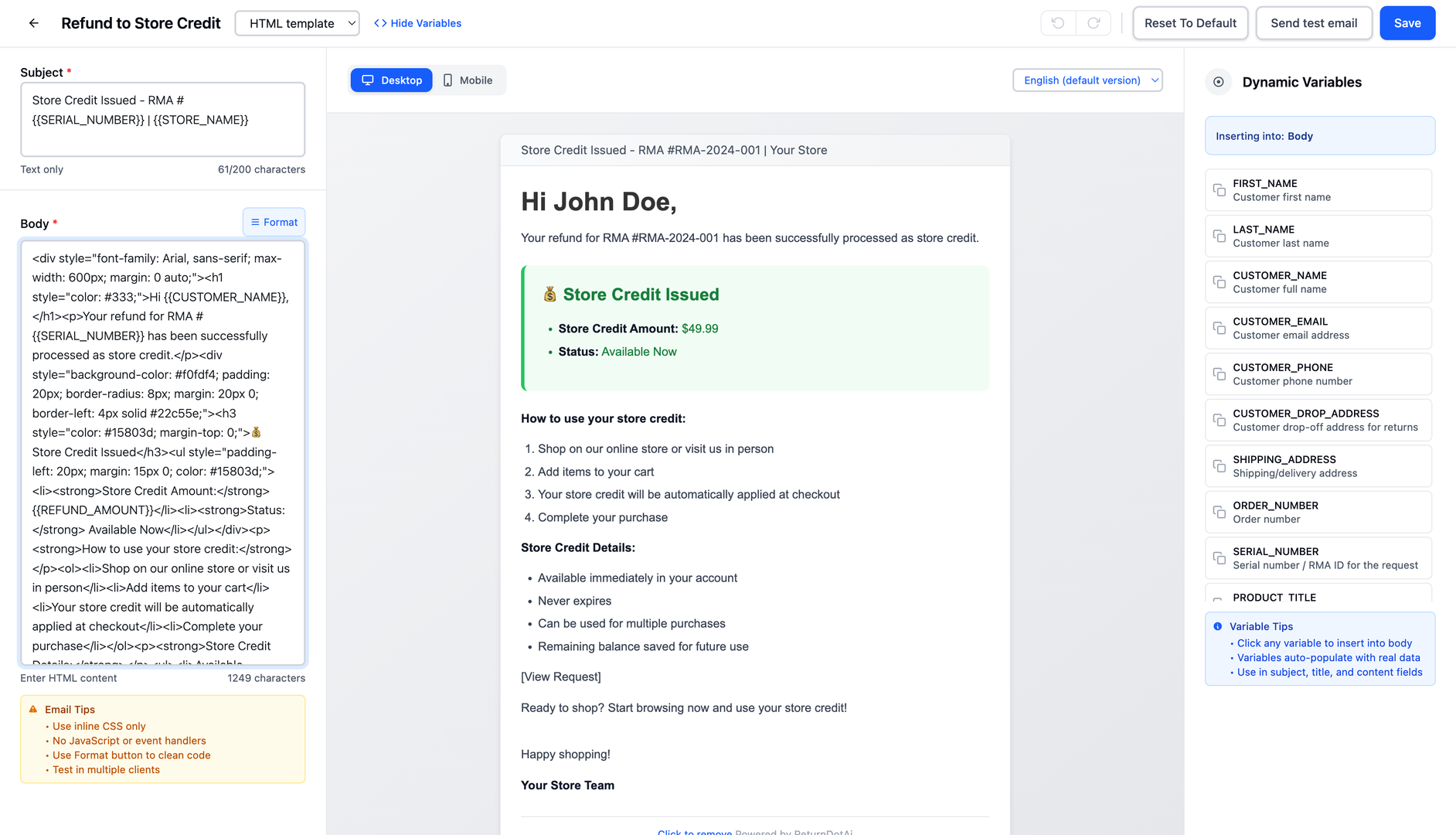
Returndotai automatically emails customers when store credit is issued for their returns using the "Store Credit request refunded" template.
- 1Navigate to Settings > Customization > Notifications in Returndotai
- 2Find the "Store Credit request refunded" email template
- 3Enable this email template
- 4Customize the email content and styling (optional)
- 5When store credit is issued, customer receives automatic email
- 6Email includes credit amount and instructions on how to use it
View All Store Credit on Shopify
Store Credit Analytics and Reports
To view all store credits from all customers in your Shopify store, you can check the store credit analytics. Store credit transactions are displayed as a payment provider in the following reports.
- 1Access your Shopify admin
- 2Navigate to Analytics section
- 3View store credit in these reports:
- 4Payments report - Shows all payment methods including store credit
- 5Payment by type report - Breaks down payments by type
- 6Filter by date range to see specific periods
- 7Export reports for accounting or analysis
Tracking Store Credit Usage
Monitor total store credit issued vs. redeemed
- Track customer retention from store credit program
- Analyze bonus credit ROI - does it drive more purchases?
- Identify top customers using store credit
- Measure average redemption time after issuance
Best Practices
Setting Bonus Credit Amounts
Start with 5-10% bonus to incentivize without over-discounting
- Higher bonuses (15-20%) for high-value returns or VIP customers
- Seasonal bonuses during slow periods to drive sales
- Test different bonus amounts and track conversion rates
- Clearly communicate bonus amounts in return portal
Customer Communication
Enable the store credit email notification template
- Include instructions on how to view and use store credit
- Add store credit balance to order confirmation emails
- Remind customers of unused credit through marketing emails
- Display store credit prominently in customer accounts
Policy Considerations
Set expiration dates for store credit (if legally allowed)
- Make store credit non-transferable to prevent fraud
- Consider minimum purchase requirements for credit use
- Clearly state store credit terms in return policy
- Handle edge cases (partial credit use, combined payments)
Troubleshooting
Common Issues and Solutions
Key points to understand:
- Store credit not showing at checkout: Ensure customer is logged in with new customer account
- Permission error: Update Shopify API permissions for store credit
- Credit not issued: Check Shopify connection and API permissions
- Customer can't see balance: Verify they're using the new customer account URL
- Bonus not calculating: Check bonus configuration in Returndotai settings
Classic Customer Accounts Issues
If using classic accounts, customers must use the special URL to access new account features.
- 1Go to Shopify Settings > Customer accounts > URL
- 2Copy the new customer accounts URL
- 3Share this URL with customers via email
- 4Update website footer/header with this link
- 5Include URL in store credit notification emails
Key Features
Revenue Retention
Keep revenue in your store instead of issuing cash refunds
Bonus Incentives
Offer bonus credit to encourage customers to shop again
Shopify Integration
Fully integrated with Shopify's native store credit system
Automatic Emails
Customers automatically notified when store credit is issued
Easy Checkout
Customers can apply store credit directly at checkout
Complete Tracking
View all store credit analytics in Shopify reports
Important Notes
Bonus Credit Calculation
If you enable refund to store credit and set up a bonus amount, the customer will receive additional credit based on the subtotal price. For example, with a 10% bonus on a $100 refund, the customer receives $110 in store credit.
Permission Update Required
If you haven't updated permissions yet, Returndotai will notify you to update scope when issuing store credit for a return request. Make sure to grant "Write store credit" and "Read store credit" permissions.
Classic Customer Accounts
If you use classic customer accounts, provide customers with the special new customer accounts URL from Settings > Customer accounts > URL so they can access their store credit.
Enable Email Notifications
Make sure to enable the "Store Credit request refunded" email template in Settings > Customization > Notifications so customers are automatically notified when credit is issued.
Start with Conservative Bonuses
When first implementing store credit, start with a 5-10% bonus to test customer response. You can always increase bonuses for special promotions or high-value returns.
Track Analytics
Regularly review store credit reports in Shopify Analytics (Payments and Payment by type) to understand usage patterns and calculate ROI on your bonus credit program.
Related Articles
How to resend notification in management details
Manually resend email notifications to customers from the order management detail page
How return notifications are sent
Understand the email notification flow for return and exchange requests
How to manage return request with pagination
Efficiently browse and filter return requests using pagination controls
How to prevent return request from specific date range
Set order date range policies to restrict returns during specific periods