
Introduction
The notifications for the return/exchange process are standardly set up to be sent to your customers for tracking the status of the return requests. This automated email system keeps customers informed at every stage of their return or exchange journey, from initial submission to final resolution.
Access this feature
Navigate to /customization/notifications in your application.
Email Notification Flows
Return Request Email Flow
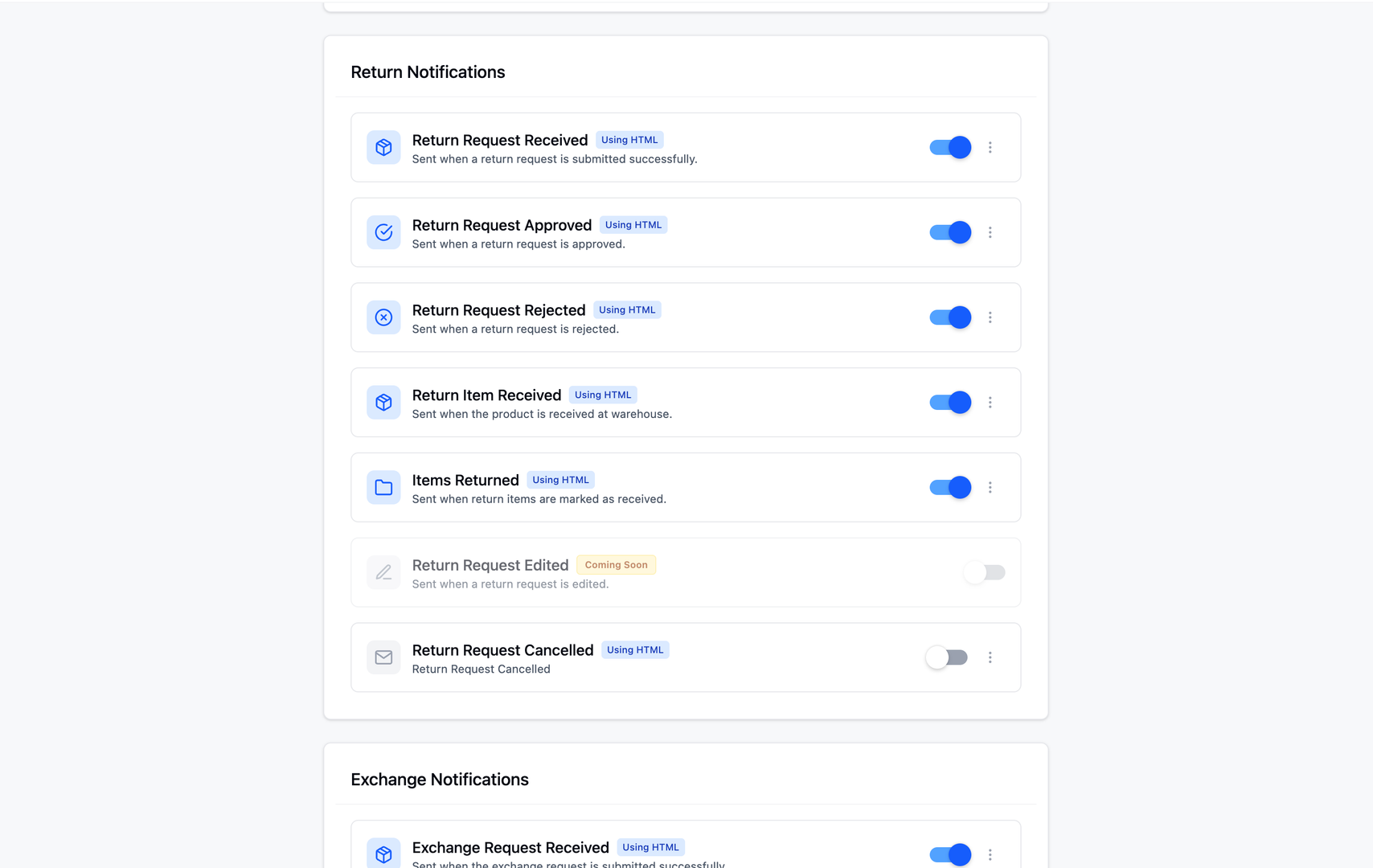
When a customer initiates a return request, they receive a series of automated emails that track the progress of their return through each stage of the process.
- 1Return Request Submitted - Confirmation email sent when customer submits the return
- 2Return Request Approved - Email sent when merchant approves the return
- 3Return Label Generated - Email with shipping label when label is created
- 4Return Received - Email when merchant receives the returned items
- 5Refund Processed - Final email when refund is issued to customer
Exchange Request Email Flow
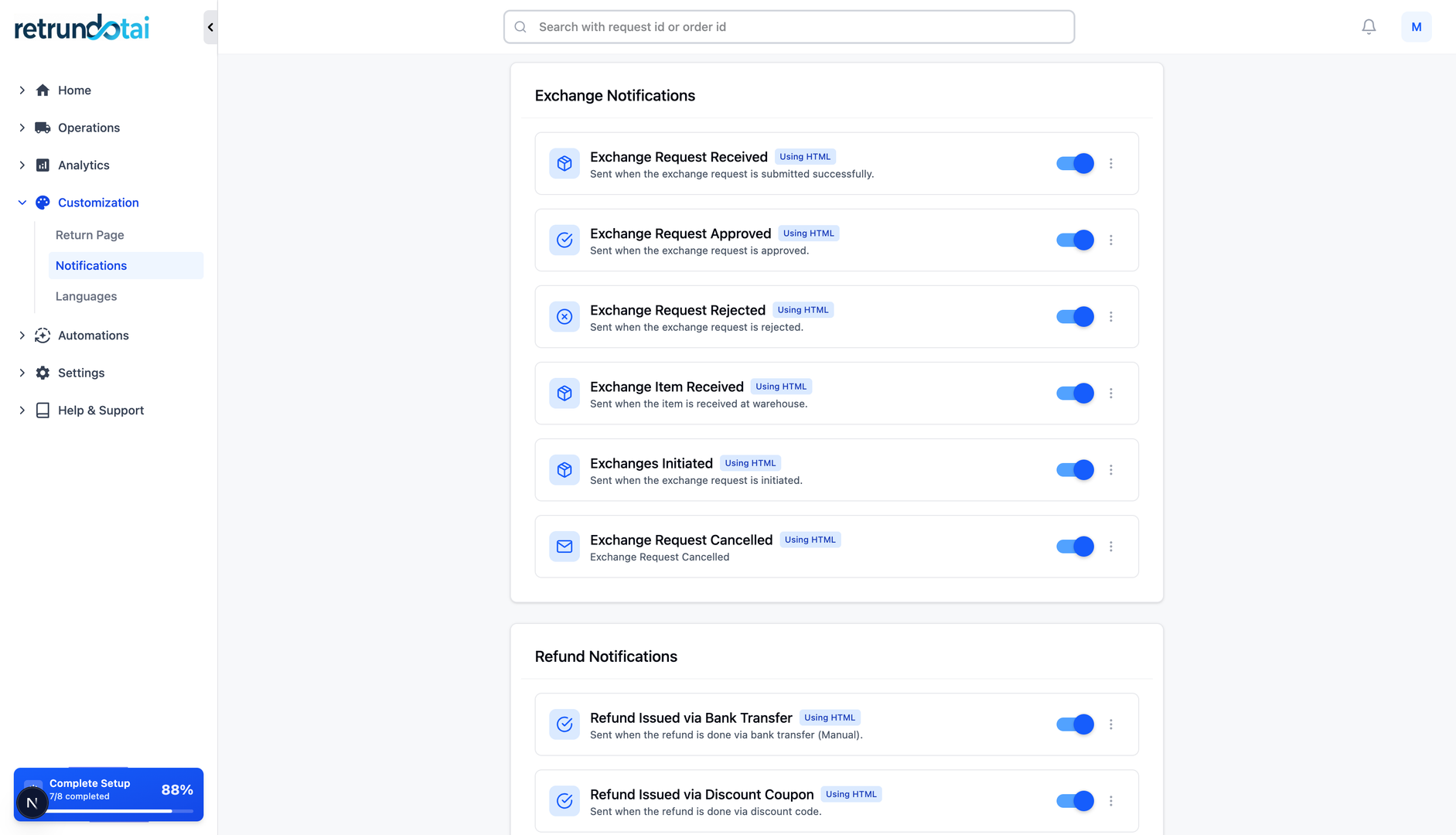
The exchange process has its own notification flow to keep customers updated on both the return of their original item and the shipment of their replacement item.
- 1Exchange Request Submitted - Confirmation email sent when customer submits the exchange
- 2Exchange Request Approved - Email sent when merchant approves the exchange
- 3Exchange Label Generated - Email with shipping label for returning original item
- 4Original Item Received - Email when merchant receives the returned item
- 5Replacement Item Shipped - Email with tracking for the new item
- 6Exchange Completed - Final confirmation when exchange is complete
Enabling Notifications in Settings
How to Access Notification Settings
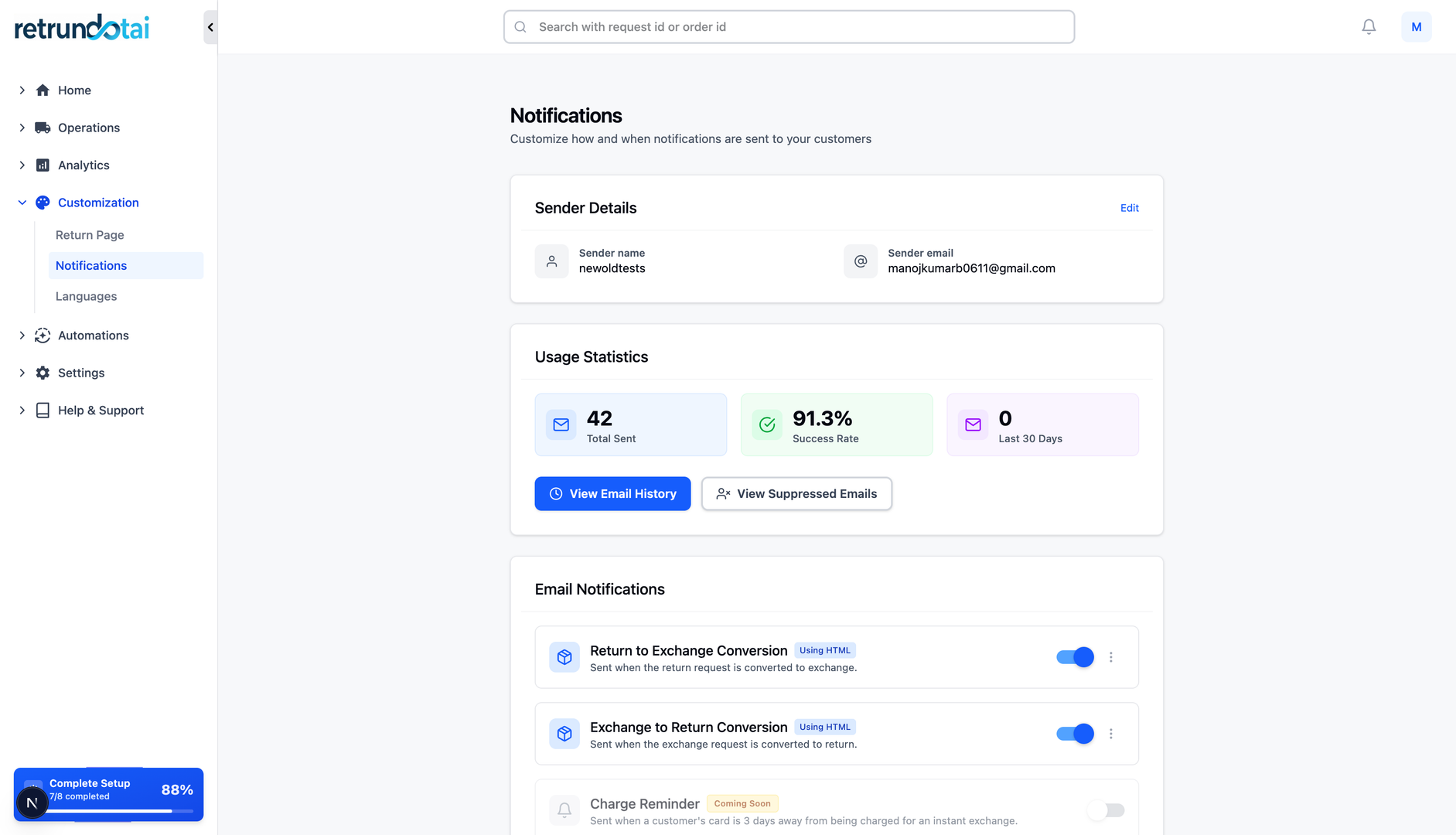
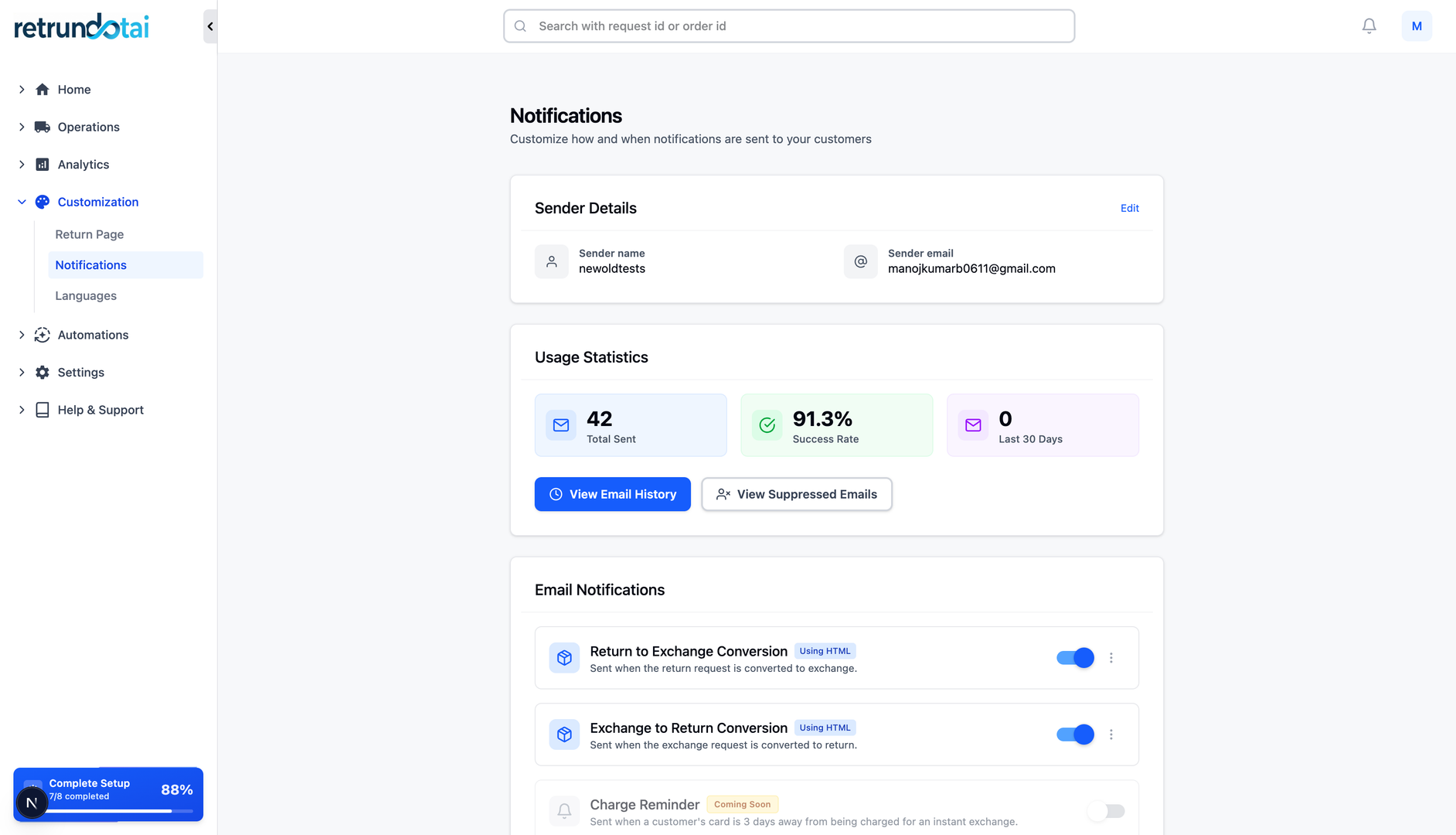
All email notifications need to be enabled in the Settings before they can be automatically sent to your customers.
- 1Navigate to Settings in your Returndotai dashboard
- 2Go to Customization > Notifications section
- 3Review the list of available notification templates
- 4Enable the notifications you want to send to customers
Available Notification Templates
The system provides pre-configured notification templates for each stage of the return and exchange process. You can enable or disable each template individually based on your business needs.
Automatic Sending Based on Actions
Actions That Trigger Notifications
Notifications are automatically sent to customers based on your actions and the status changes of their requests. Here are the key actions that trigger emails:
- 1Approving a Return/Exchange Request - Sends approval confirmation
- 2Declining a Return/Exchange Request - Sends decline notification with reason
- 3Generating a Shipping Label - Sends label email with download link
- 4Marking Items as Received - Sends receipt confirmation
- 5Processing a Refund - Sends refund confirmation with details
- 6Shipping Replacement Items - Sends tracking information
- 7Adding Comments - Optional notification based on settings
Status-Based Automation
The notification system intelligently tracks the status of each request and sends appropriate emails as the status changes, ensuring customers are always informed without manual intervention.
- Pending → Approved: Approval email sent automatically
- Approved → Label Generated: Label email sent automatically
- In Transit → Received: Receipt confirmation sent automatically
- Received → Refunded: Refund confirmation sent automatically
Customization Options
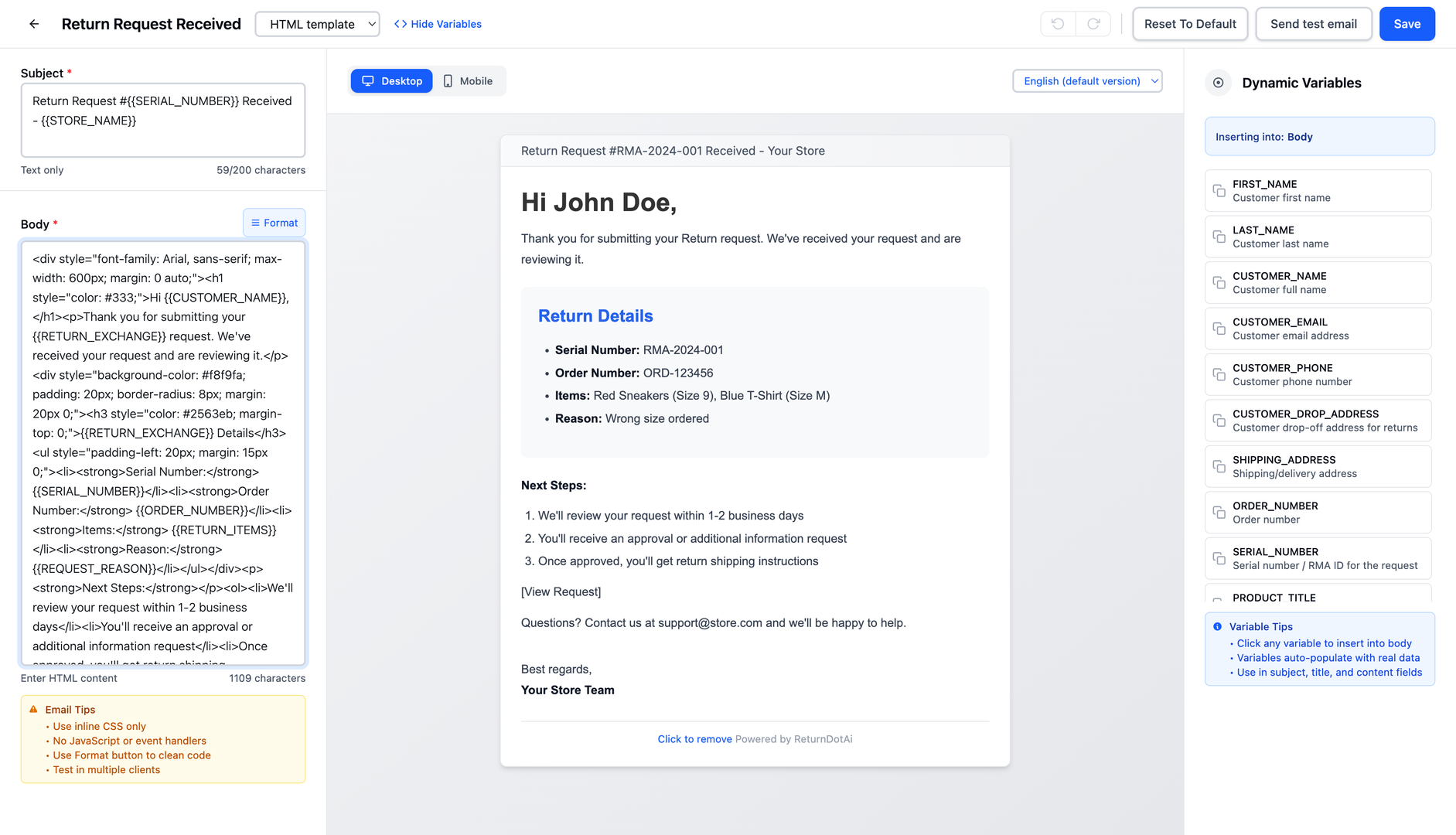
Customize Email Templates
Each notification template can be customized to match your brand and communication style.
- 1Go to Settings > Customization > Notifications
- 2Click on any notification template to edit
- 3Customize the subject line, email body, and styling
- 4Add your logo and brand colors
- 5Preview the email before saving
- 6Save changes to apply the new template
Configure Sender Information
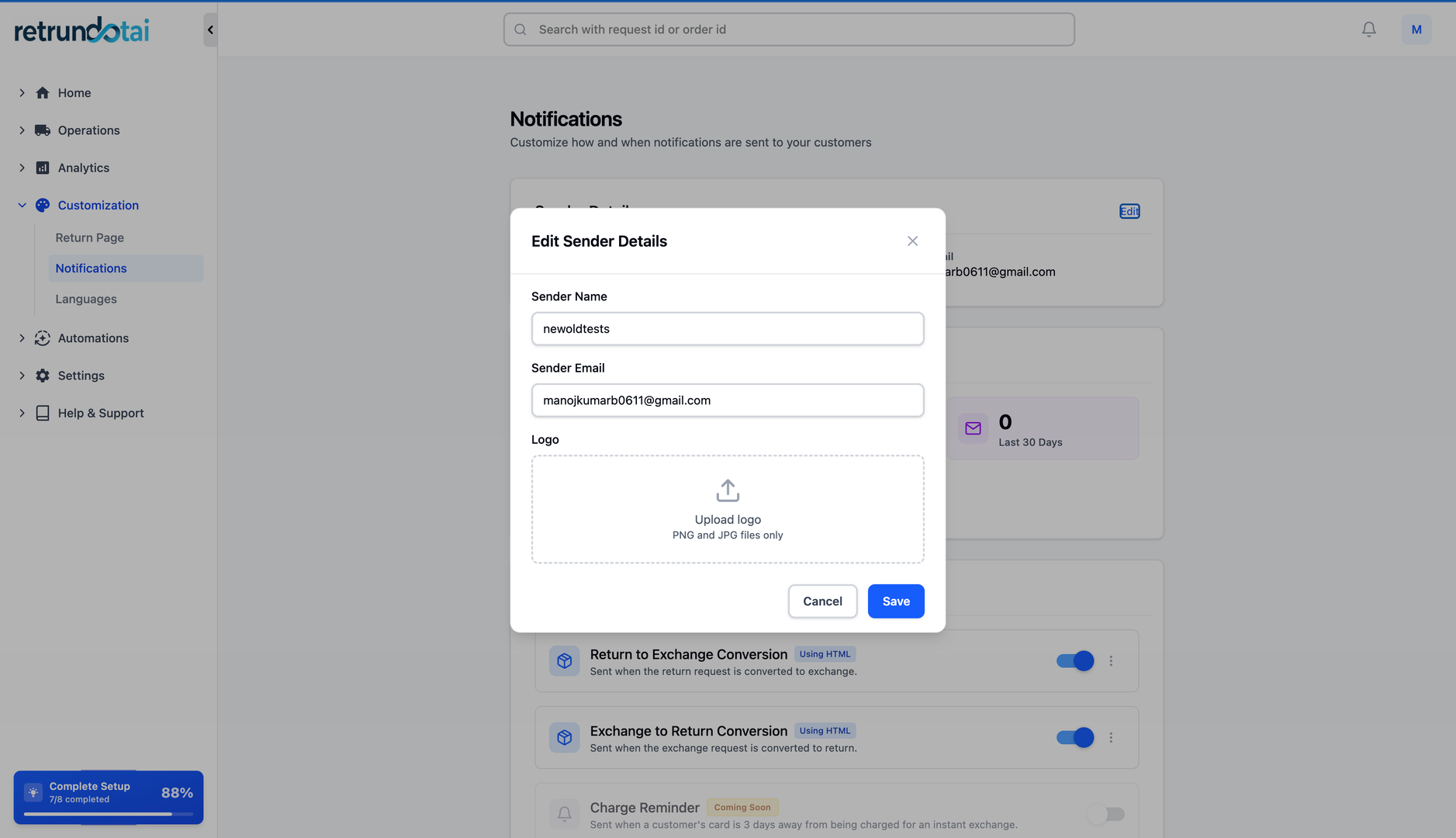
Set up your sender name and email address so notifications appear to come from your business.
- 1Navigate to Notification Settings
- 2Find the "Sender Information" section
- 3Enter your business name as the sender name
- 4Configure your reply-to email address
- 5Save the sender configuration
Set Notification Preferences
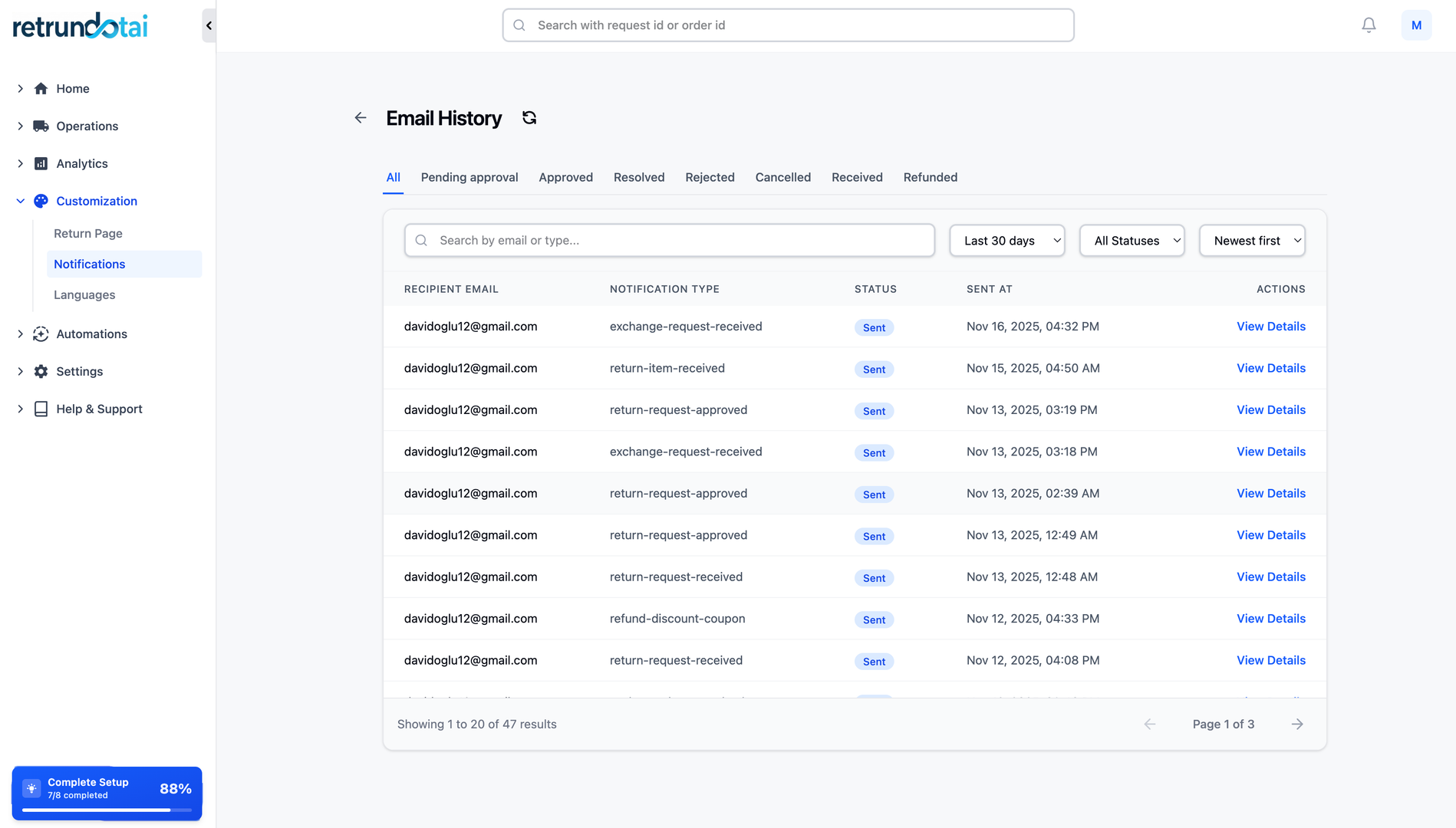
Control which notifications are sent and when they are triggered based on your workflow.
Notification Examples
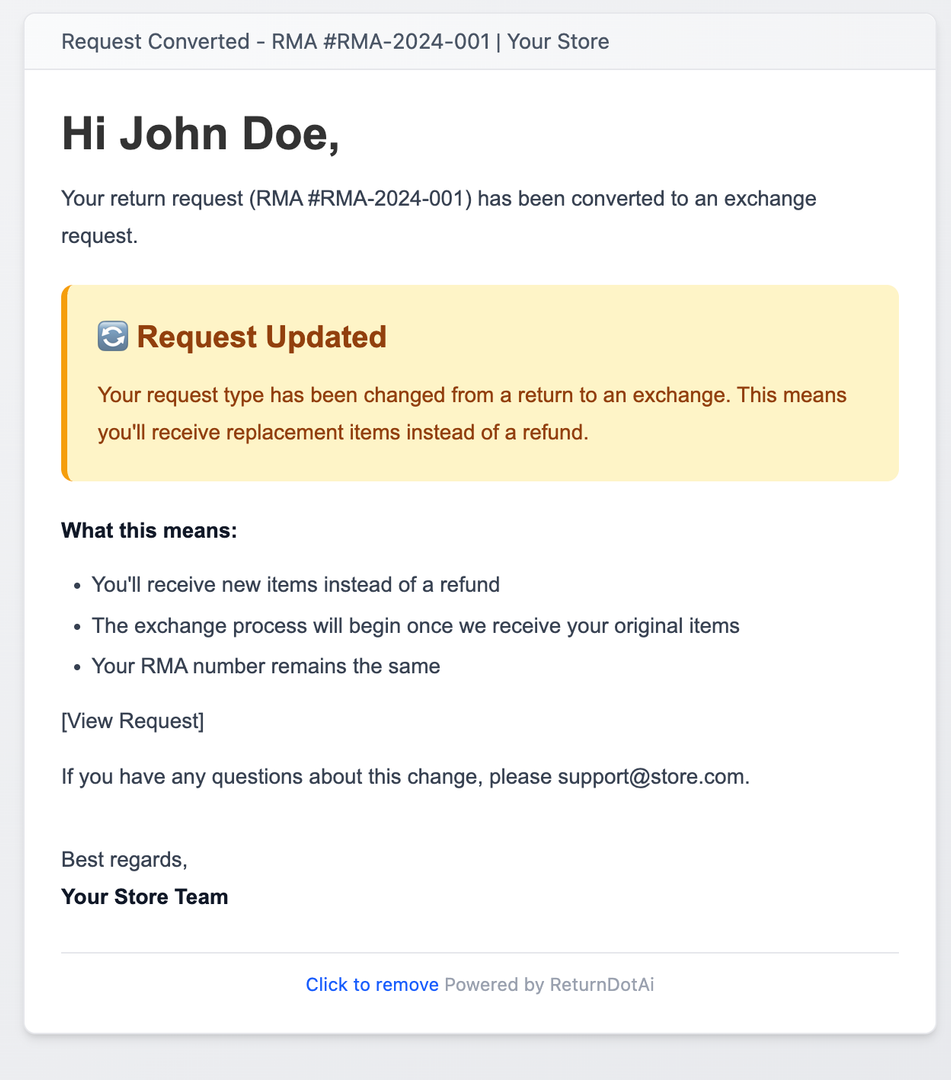
Example Email Templates
Here are examples of what your customers will see when they receive notifications:
Key Features
Automated Delivery
Notifications are sent automatically based on status changes and merchant actions
Complete Flow Coverage
Separate email flows for returns and exchanges covering every step
Fully Customizable
Customize templates, branding, and sender information to match your business
Status Tracking
Keep customers informed at every stage of their return or exchange
Enable/Disable Control
Turn individual notification types on or off based on your needs
Professional Templates
Pre-designed, mobile-responsive email templates ready to use
Important Notes
Important Note
The notifications need enabling in the "Settings" and will automatically send to your customers based on your actions on their requests.
Best Practice
Enable all key notification types (Submitted, Approved, Label Generated, Received, Refunded) to provide customers with complete visibility into their return status.
Template Customization
Customize your email templates to include helpful information like return policy reminders, customer service contact details, and expected timelines.
Testing Notifications
Use the "Send Test Email" feature to preview how notifications will appear to customers before enabling them in production.
Reply-To Address
Set up a monitored customer service email as your reply-to address so you can respond to customer questions about their returns.
Related Articles
How to resend notification in management details
Manually resend email notifications to customers from the order management detail page
How to manage return request with pagination
Efficiently browse and filter return requests using pagination controls
How to prevent return request from specific date range
Set order date range policies to restrict returns during specific periods
Refund to Store Credit
Issue refunds as store credit to retain revenue while providing customer flexibility