
Introduction
Many merchants need to restrict return requests during specific periods, especially during sensitive times like holiday seasons, sales campaigns, or special events. The Set Order Date Range Policy feature allows you to easily control which orders are eligible for returns based on their purchase date. This powerful policy tool helps you manage returns strategically and protect your business during critical periods.
Access this feature
Navigate to /settings/policies in your application.
Feature Overview: Set Order Date Range Policy
What This Feature Does
The Order Date Range Policy enables merchants to block return requests for orders placed within a specific date range. This is particularly useful for managing returns during high-volume sales periods, holiday seasons, or special promotional events where you need more control over your return policy.
- 1Prevents return requests for orders from specific date ranges
- 2Automatically enforces the policy without manual intervention
- 3Protects inventory during critical business periods
- 4Applies to all orders created within the specified timeframe
- 5Can be enabled or disabled as needed
What You Can Do with This Feature
Key Capabilities
With the Set Order Date Range Policy, you have complete control over return eligibility based on order creation dates.
- 1Define a start date and end date to block return requests
- 2Block returns for orders created within that timeframe
- 3Automatically prevent all return requests for the restricted period
- 4Set multiple date range policies for different periods
- 5Enable or disable policies without deleting them
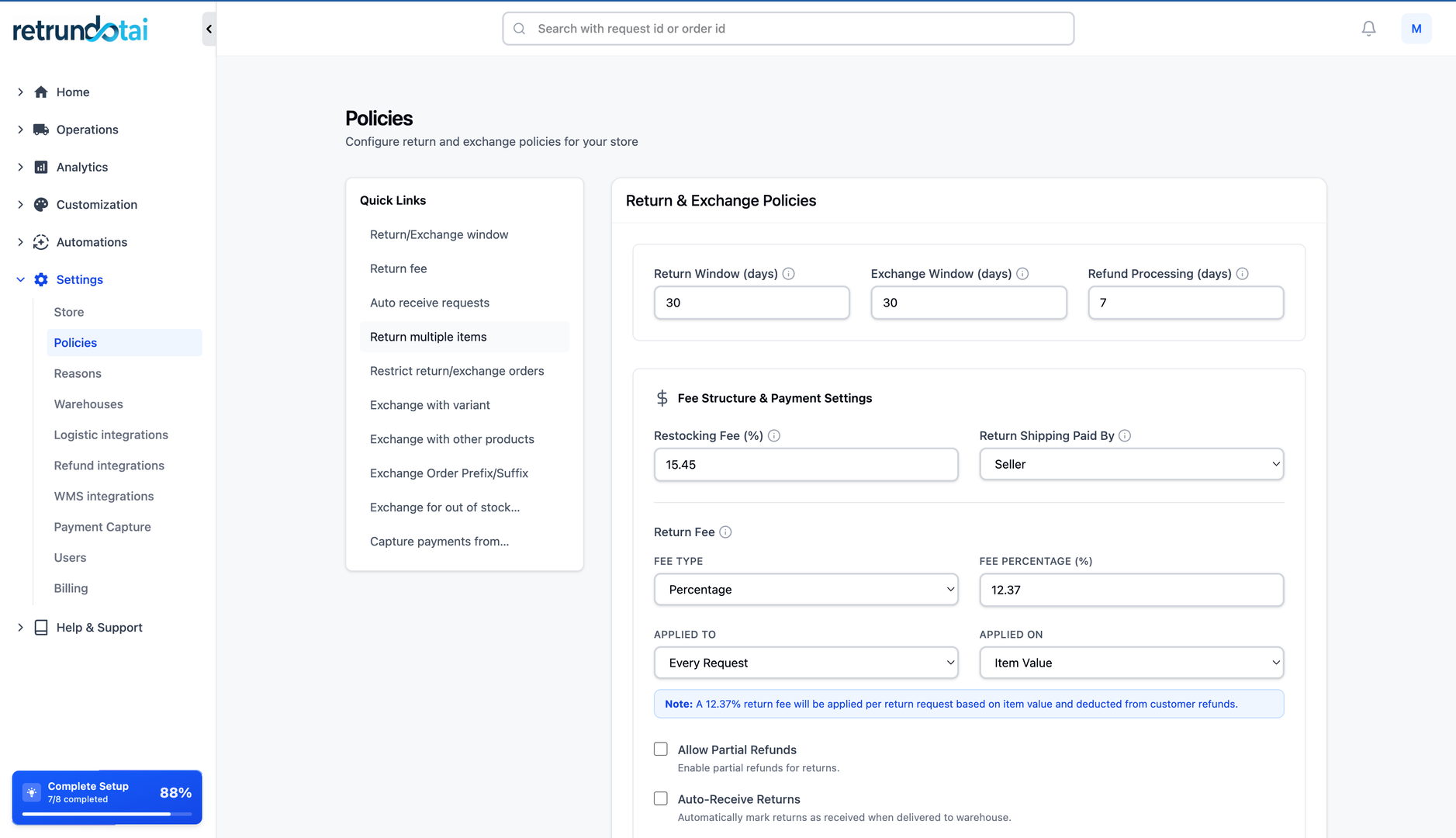
How to Set Up Order Date Range Policy
Step 1: Access Policy Settings
Navigate to the policy settings page where you can configure order date range restrictions.
- 1Log into your Returndotai dashboard
- 2Go to Settings in the main navigation
- 3Click on Policies section
- 4Find the "Order Date Range Policy" or "Prevent Returns by Date" option
- 5Click to expand or configure the policy

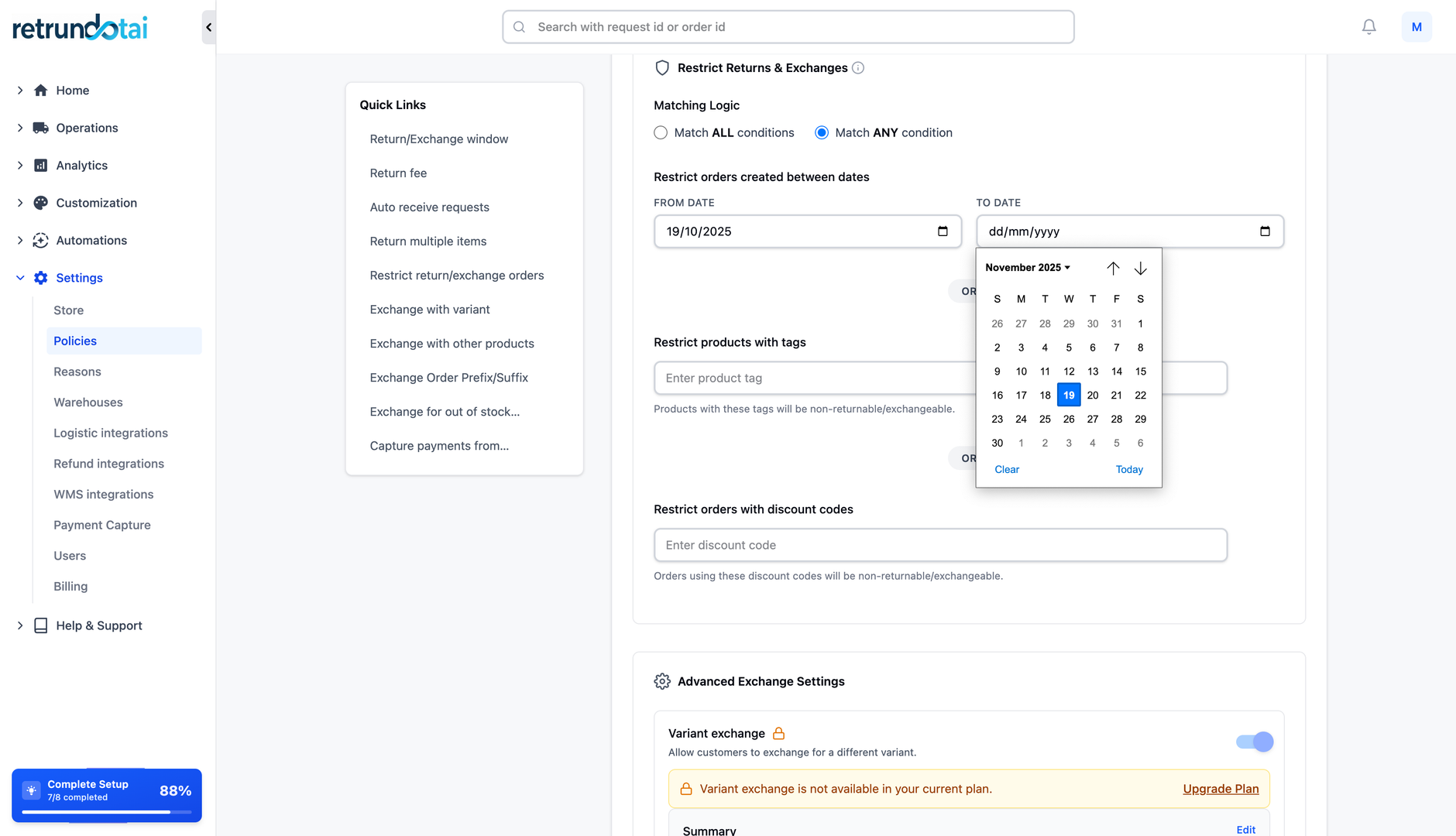
Step 2: Configure Date Range
Set the start and end dates for the period during which you want to block return requests.
- 1Click "Add Date Range" or "Create New Policy"
- 2Select the START DATE - First day of the restricted period
- 3Select the END DATE - Last day of the restricted period
- 4The policy will apply to all orders created between these dates
- 5Review the date range to ensure accuracy
Step 3: Enable the Policy
Once you've configured the date range, enable the policy to start blocking return requests for orders from that period.
- 1Toggle the policy to "Enabled" or "Active"
- 2The policy takes effect immediately
- 3All orders created within the date range are now ineligible for returns
- 4Customers attempting returns for these orders will see a message
- 5Save your changes
Practical Example
🔍 Real-World Example
Let's walk through a practical scenario to understand how this feature works.
- Scenario: Black Friday Sale (November 20-30, 2025)
- Policy Set: Orders created between 20/11/2025 – 30/11/2025
- Result: All orders from this 11-day period cannot be returned
- Customer Impact: Shoppers see "This order is not eligible for return"
- Business Benefit: Protected from post-sale return surge
Step-by-Step Example
- 1Merchant sets policy: Start Date = 20/11/2025, End Date = 30/11/2025
- 2Policy is enabled in the settings
- 3Customer purchases on 25/11/2025 (within the restricted range)
- 4Customer attempts to initiate a return
- 5System blocks the return request automatically
- 6Customer receives a message explaining the order is not eligible
- 7Orders purchased before 20/11 or after 30/11 remain eligible for returns
Common Use Cases
Holiday Season Protection
Black Friday / Cyber Monday sales - High volume, final sale items
- Christmas shopping period - Gift purchases with different return dynamics
- New Year clearance sales - Deep discounts requiring protection
- Valentine's Day promotions - Time-sensitive gift purchases
- Back to School sales - Seasonal items with limited return windows
Special Events and Campaigns
Flash sales - 24-48 hour sales with no returns policy
- Clearance events - Final sale items that cannot be returned
- Product launches - New products with restricted return periods
- Liquidation sales - Closeout inventory sold as-is
- VIP member exclusive sales - Special pricing with modified policies
Inventory Management Scenarios
Seasonal inventory clearance - Moving seasonal stock before season end
- Warehouse relocation - Temporary restriction during logistics changes
- System upgrades - Technical maintenance periods
- Peak shipping periods - Managing volume during high-demand times
- Limited edition releases - Special products with stricter policies
Managing Multiple Date Range Policies
Creating Multiple Policies
You can create multiple date range policies to cover different periods throughout the year.
- 1Each policy can have a unique start and end date
- 2Policies can overlap or be separate
- 3Enable/disable individual policies as needed
- 4View all active policies in a list
- 5Edit or delete policies that are no longer needed
How Policies Work Together
When multiple policies are active, understand how they interact.
- Overlapping dates: Both policies apply - order remains ineligible
- Gap between policies: Orders in gaps ARE eligible for returns
- Policy disabled: That date range becomes eligible again
- Policy deleted: Permanent removal, cannot be recovered
- All policies checked: System validates against all active policies
Customer Experience
What Customers See
When a customer tries to return an order from a restricted date range, they will receive a clear message.
- 1Customer navigates to the return portal
- 2Enters their order number and email
- 3System checks the order date against active policies
- 4If order falls within a restricted range, return is blocked
- 5Customer sees message: "This order is not eligible for return"
- 6Optional: Custom message explaining the policy
Communicating the Policy to Customers
Display the policy clearly on product pages during the sale period
- Include policy details in order confirmation emails
- Add a banner on your website during restricted sale periods
- Update your return policy page with date-specific information
- Train customer service team to handle policy-related inquiries
Best Practices
Planning Your Policies
Set up policies at least 1 week before the sale starts
- Test the policy with a test order before going live
- Coordinate with marketing team on messaging
- Update website and email templates to reflect the policy
- Plan for customer service volume during restricted periods
Legal and Compliance Considerations
Ensure your policy complies with local consumer protection laws
- Some regions require minimum return periods regardless of sales
- Clearly disclose the no-return policy BEFORE purchase
- Consider offering exchanges or store credit as alternatives
- Document your policies for legal protection
Timing and Duration Tips
Keep restricted periods as short as necessary
- Consider customer goodwill - too many restrictions harm trust
- Align with industry norms for your sector
- Balance business protection with customer satisfaction
- Review policy effectiveness after each period
Troubleshooting
Common Issues and Solutions
Key points to understand:
- Policy not working: Check that policy is enabled and dates are correct
- Wrong orders blocked: Verify date range doesn't overlap unintended periods
- Customers confused: Improve policy communication on website
- Policy can't be deleted: Disable it first, then delete
- Dates overlap: Review all active policies and adjust as needed
Handling Exceptions
Sometimes you may need to manually override the policy for specific cases.
- 1Customer has a legitimate complaint (defective product)
- 2Contact customer service to review the case
- 3Admin can manually process exceptions through backend
- 4Document the exception for compliance records
- 5Consider if the exception reveals a policy issue
Key Features
Date Range Control
Set specific start and end dates to block return requests
Automatic Enforcement
System automatically prevents returns without manual intervention
Multiple Policies
Create and manage multiple date range policies for different periods
Easy Enable/Disable
Toggle policies on or off without deleting them
Customer Messaging
Clear messages inform customers why returns are not available
Business Protection
Protect revenue during sales events and sensitive periods
Important Notes
Example Scenario
If you set the Order Date Range Policy as: Orders created between 20/11/2025 – 30/11/2025, then any order purchased within this date range will not be eligible for return once the policy is enabled.
Best Practice
Always communicate date-specific return restrictions clearly on your website, product pages, and order confirmation emails BEFORE customers make a purchase.
Legal Compliance
Ensure your date range policies comply with consumer protection laws in your region. Some jurisdictions require minimum return periods regardless of sale type.
Planning Tip
Set up your date range policies at least one week before the sale period begins to ensure proper testing and customer communication.
Customer Service
Train your customer service team on how to handle inquiries about blocked returns, including when and how to grant exceptions for legitimate cases.
Policy Review
After each restricted period ends, review the policy's effectiveness and customer feedback to improve future implementations.
Related Articles
How to resend notification in management details
Manually resend email notifications to customers from the order management detail page
How return notifications are sent
Understand the email notification flow for return and exchange requests
How to manage return request with pagination
Efficiently browse and filter return requests using pagination controls
Refund to Store Credit
Issue refunds as store credit to retain revenue while providing customer flexibility