
Introduction
Returndotai Returns & Exchanges offers merchants the option to provide customers with refunds in the form of gift cards as a way to retain revenue while allowing customers to spend their refund amount on other items from the store catalog. Gift cards provide flexibility for customers while helping merchants maintain sales within their store ecosystem.
Access this feature
Navigate to /settings/policies in your application.
Overview
What is Gift Card Refund?
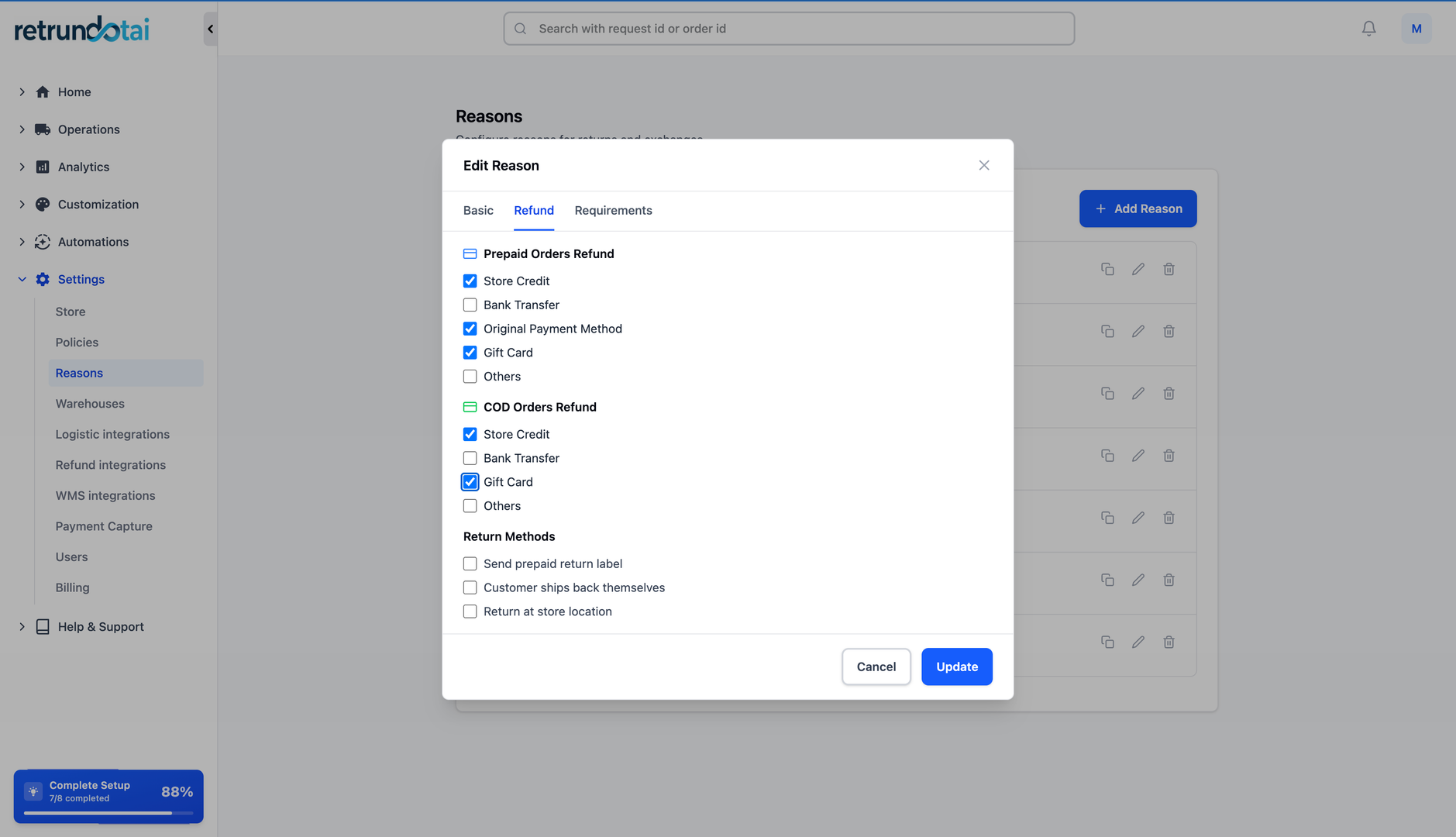
Activating the option to issue refunds as gift cards for customers on the returns portal is straightforward. It can be done under Settings > Reasons in the Returndotai Returns & Exchanges admin. This feature allows you to retain revenue from returns while giving customers purchasing power for future orders.
- 1Customer requests a return and selects "Gift Card" as refund method
- 2You approve the return request
- 3Returndotai generates a Shopify gift card code
- 4Customer receives gift card code via email
- 5Customer can use the gift card for future purchases
- 6Optional: Add bonus credit to incentivize gift card selection
Video Tutorial
Watch this instructional video on how to refund to Gift Card by issuing a gift card through Returndotai Returns & Exchanges.
Enable Refund to Gift Card
Setup Instructions
Follow these steps to enable the gift card refund option in your Returndotai admin.
- 1Go to Settings in the Returndotai Returns & Exchanges app
- 2Navigate to Reasons section
- 3Find the "Refund to Gift Card" option
- 4Shift the toggle to the right to enable it
- 5Add a small preview text (Description) to give extra information
- 6The description will be shown to customers on the returns portal
- 7Configure bonus credit (optional):
- 8Add a bonus credit amount to encourage customers
- 9The price will be refunded via gift card for the next order
- 10Set to 0 or disable if you don't want to offer bonus
- 11Click "Save" to apply changes
How Does Refund to Gift Card Work?
a. In the Returns Portal (Customer View)
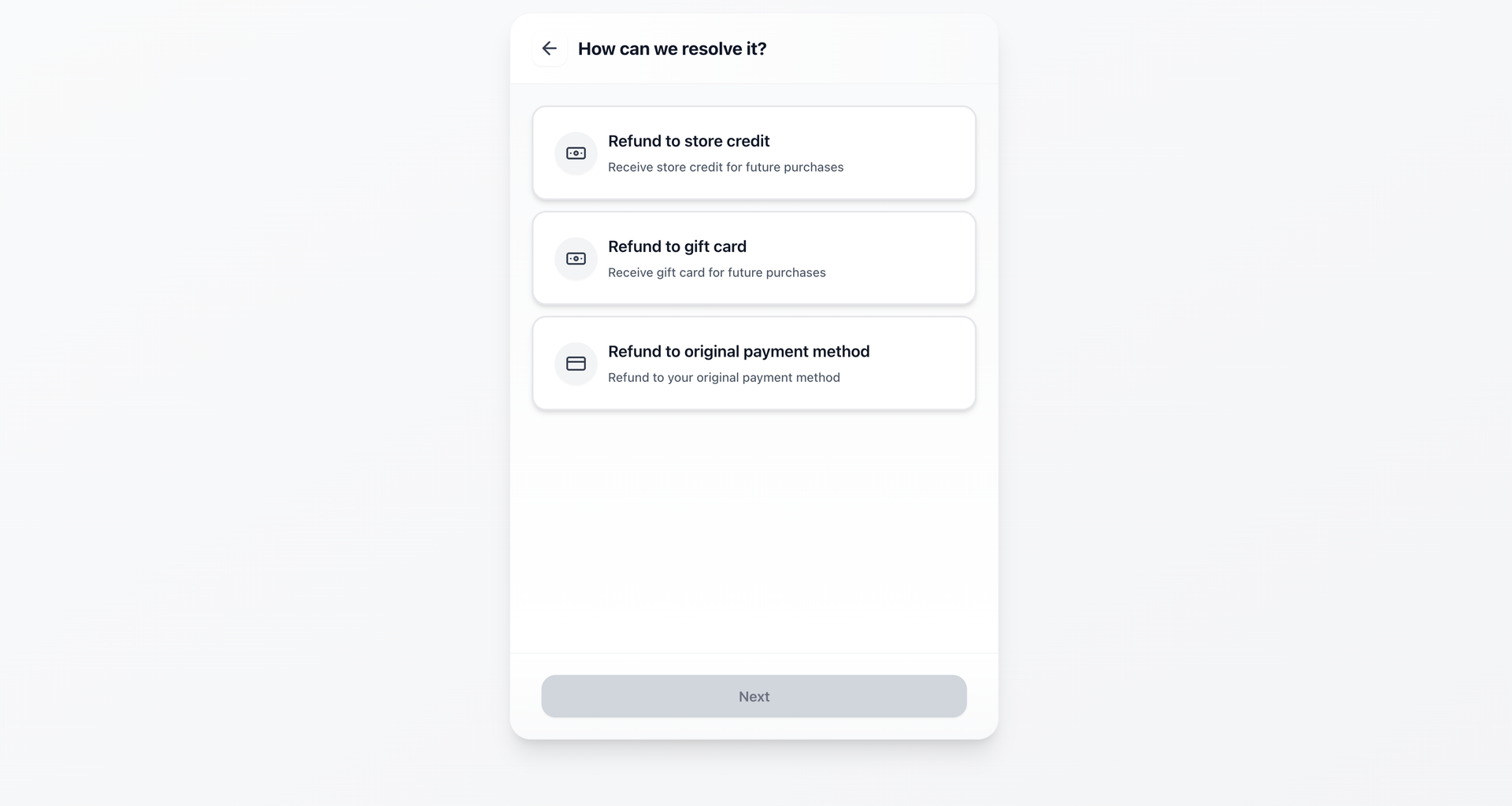
When customers initiate a return and select gift card as their refund method, they see the total refund value including any bonus credit you've configured.
- 1Customer navigates to the returns portal
- 2Selects items to return
- 3Chooses "Refund to Gift Card" as refund method
- 4Sees base refund amount displayed
- 5Sees bonus credit amount (if configured)
- 6Views total gift card value they will receive
- 7Submits return request
Bonus Credit Calculation
If you enable the refund to Gift Card and set up a bonus amount, the customer will receive an additional amount based on the subtotal price.
- Example: Original refund = $50, Bonus = 10%
- Base gift card value: $50
- Bonus credit: $5 (10% of $50)
- Total gift card value: $55
- Customer incentivized with extra $5 to shop again
b. In the App (Merchant View)
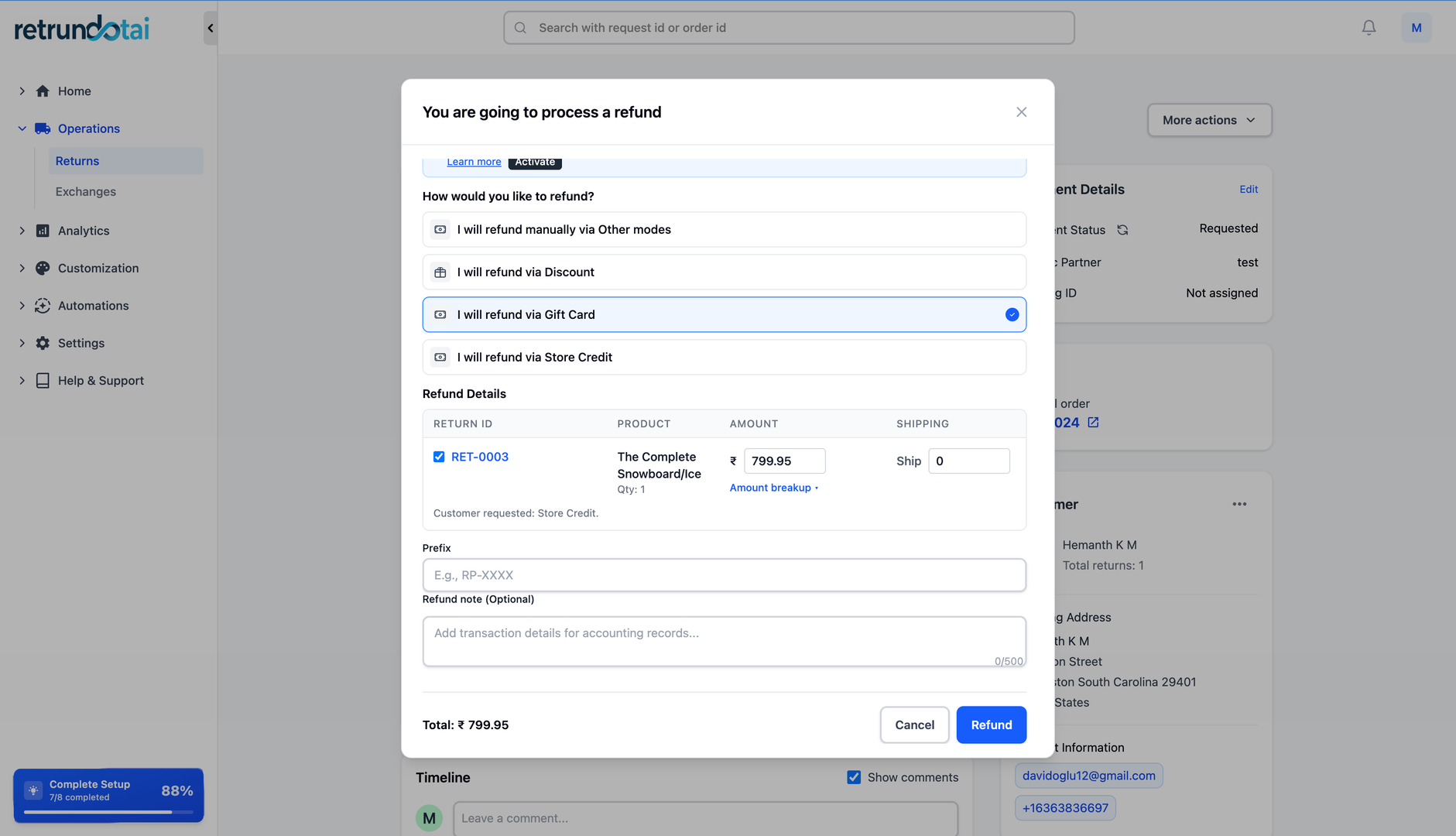
The bonus credit for the refund to Gift Card will be shown in the management details, allowing you to see the complete gift card value being issued.
- 1View return request in Returndotai admin
- 2See "Refund to Gift Card" as selected resolution
- 3View base refund amount
- 4View bonus credit amount (if applicable)
- 5See total gift card value to be issued
- 6Click "Issue Gift Card" button to process
- 7Gift card is generated in Shopify
Required Shopify Permissions
Update Shopify Store Permissions
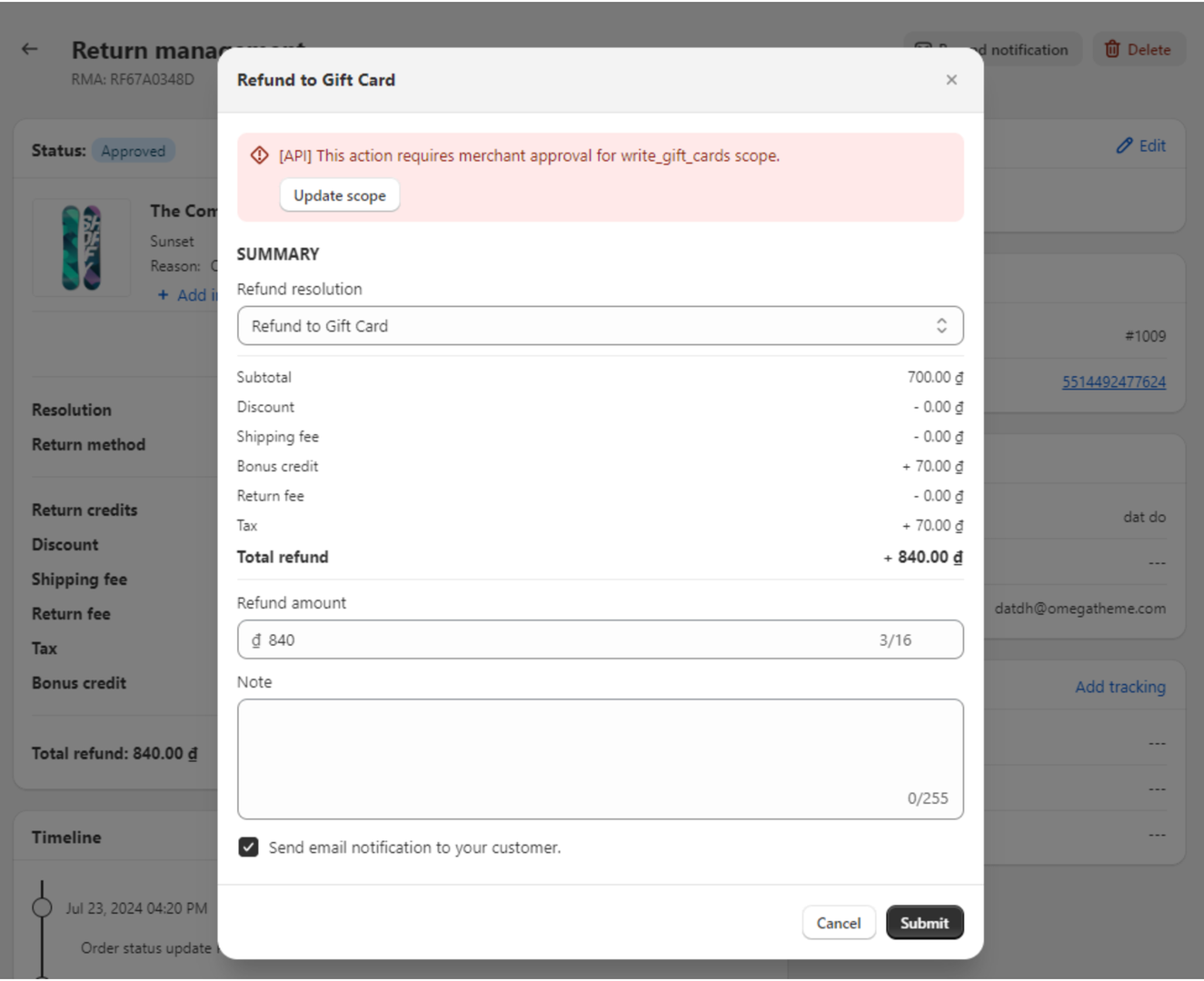
To use the gift card refund feature, you must update Shopify store permissions. Shopify stores without permission to read and write gift cards generated in Returndotai Returns & Exchanges will get an error when issuing a gift card on the Returns detail page.
- 1Returndotai will notify you if permissions need updating
- 2Click "Update Permissions" when prompted
- 3You'll be redirected to Shopify to grant permissions
- 4Approve the following permissions:
- 5Read gift cards
- 6Write gift cards
- 7Return to Returndotai after granting permissions
- 8You can now issue gift cards for return requests
Gift Cards in Shopify
Viewing Generated Gift Cards
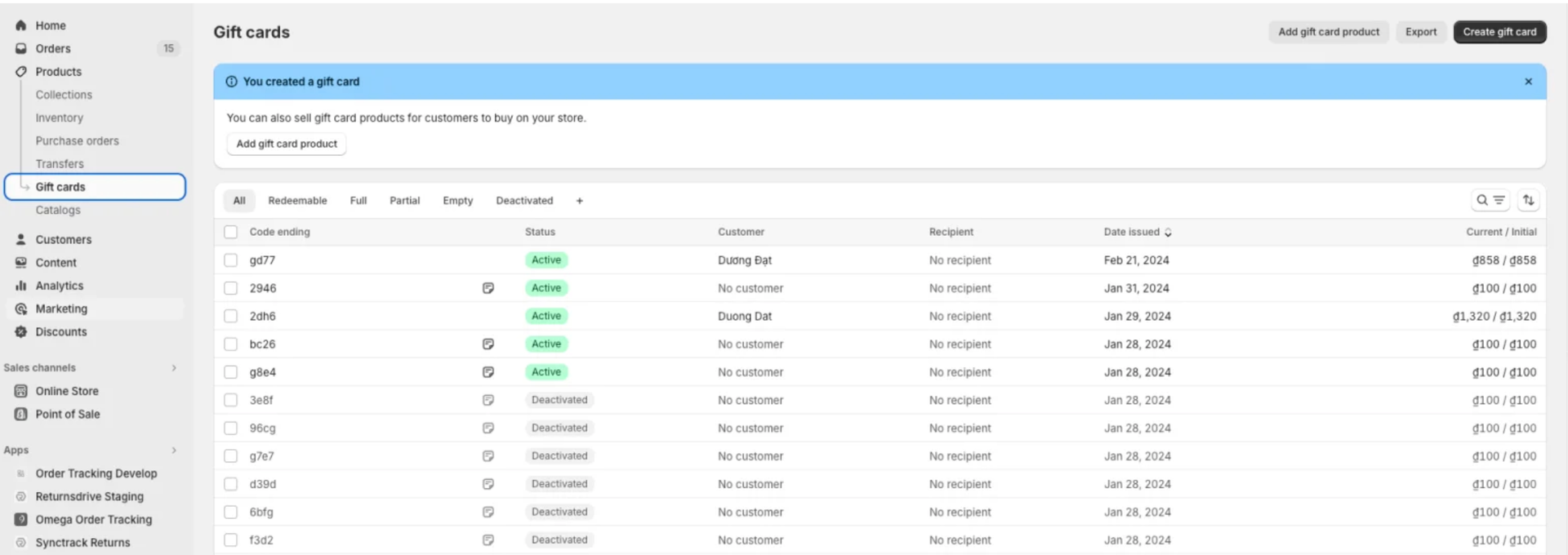
Once the refund request for Gift Card receives approval and the corresponding gift card is created within the Returndotai Returns & Exchanges admin, Shopify will automatically generate a gift card code reflecting the total value of the return under its "Gift cards" section.
- 1Go to Products > Gift cards in the Shopify admin
- 2View all gift cards issued through your store
- 3Find and open the gift card code from the list
- 4Look for the code ending with the same digits as the one generated in Returndotai
- 5Click to view full gift card details
Gift Card Details in Shopify
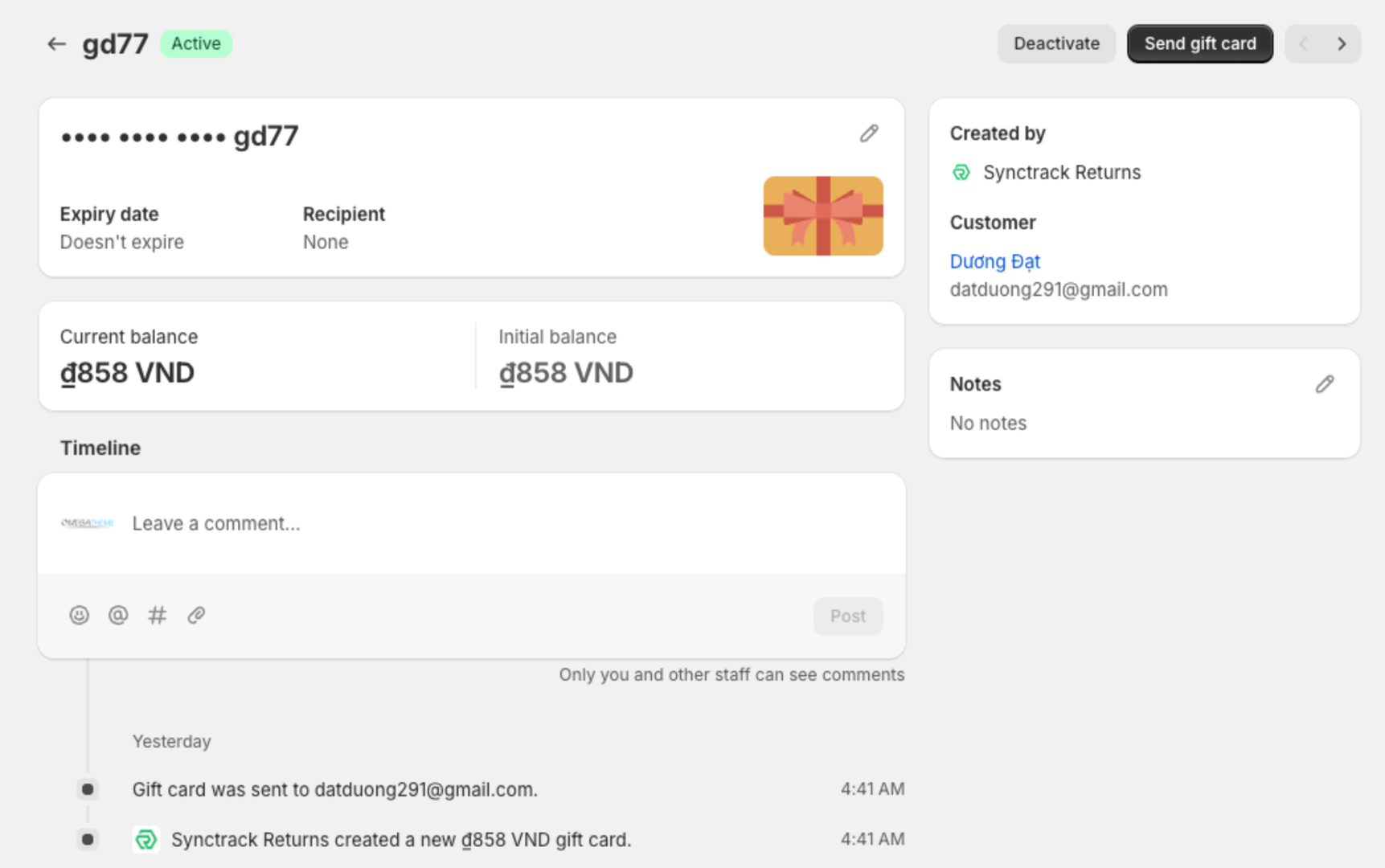
Under Gift Card Details in Shopify, you will see complete information about the gift card issued through Returndotai.
- 1Timeline with all changelogs:
- 2When gift card was issued
- 3When email with gift card was sent via Shopify
- 4When gift card was used (partial or full)
- 5Remaining balance after each transaction
- 6Note on the right-hand side:
- 7Explains the issuer of the gift card (Returndotai Returns)
- 8Shows the return request reference
- 9Gift card code and value
- 10Current balance remaining
- 11Expiration date (if applicable)
Customize Shopify Email Notifications
Access Email Template Settings
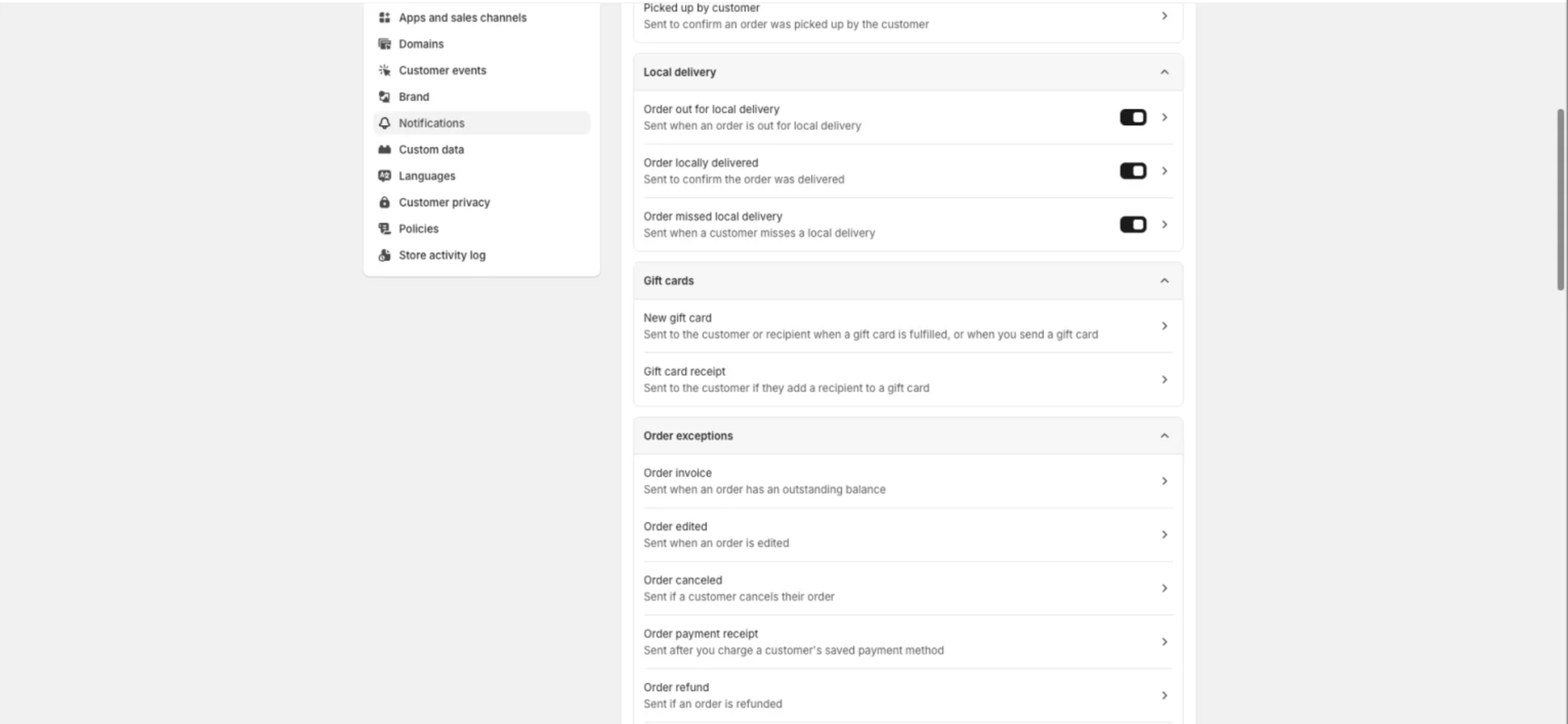
Shopify automatically sends gift card codes to customers via email. You can customize the look and feel of this email to match your brand.
- 1Go to Shopify Settings
- 2Click on Notifications
- 3Scroll through the notification templates
- 4Find "Gift card created" template
Customize the Gift Card Email Template
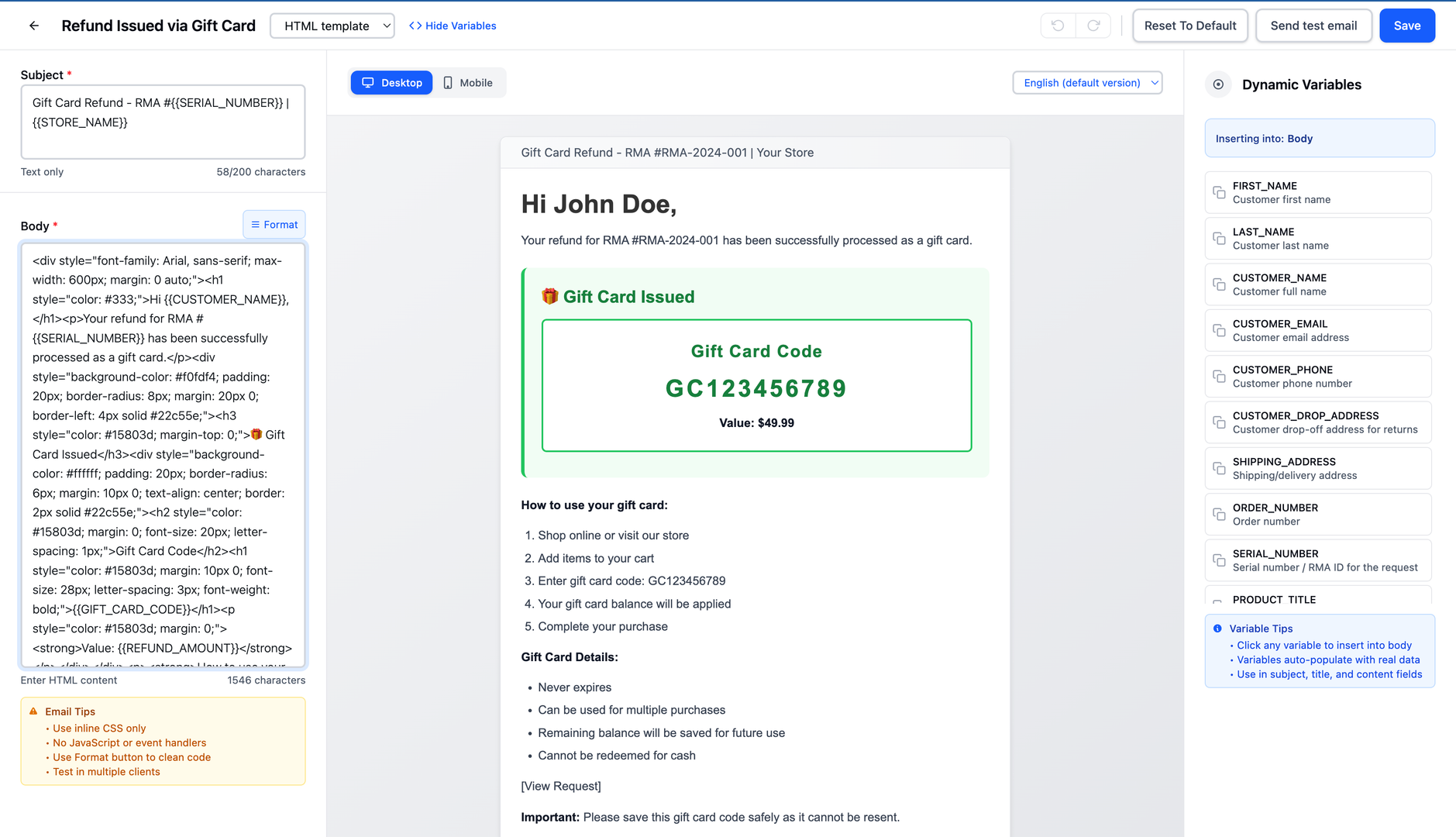
To customize the look and feel of the email notification, click "Customize email template" and navigate to the gift card template.
- 1Click "Customize email template" button
- 2Keep pushing the forward arrow button
- 3Navigate until you reach the template for "Gift card created"
- 4From the right-hand side panel, customize:
- 5Change the brand logo to your logo
- 6Update CTA button color to match your brand
- 7Modify email text and messaging
- 8Add your brand colors and styling
- 9Preview the email to see how it looks
- 10Click "Save" to apply your customizations
How Customers Use Gift Cards
Receiving the Gift Card
After you approve the return and issue the gift card, Shopify automatically sends the gift card code to the customer via email.
- 1Customer receives email from your store
- 2Email contains unique gift card code
- 3Shows gift card balance/value
- 4Includes instructions on how to use it
- 5Displays expiration date (if applicable)
- 6Contains link to your store to start shopping
Applying Gift Card at Checkout
Customers can easily apply their gift card code during the checkout process.
- 1Customer adds items to cart
- 2Proceeds to checkout
- 3Finds "Gift card or discount code" field
- 4Enters or pastes the gift card code
- 5Clicks "Apply"
- 6Gift card value is deducted from order total
- 7If balance remains, it's saved for future use
- 8If order exceeds gift card value, customer pays the difference
Checking Gift Card Balance
Customers can check their remaining gift card balance at any time.
- 1Visit your store's gift card balance checker page
- 2Enter the gift card code
- 3View current balance
- 4See transaction history (purchases made)
- 5Check expiration date
Best Practices
Setting Bonus Amounts
Start with 5-10% bonus to incentivize without over-discounting
- Higher bonuses (10-15%) during slow sales periods
- Consider customer lifetime value when setting bonuses
- Test different bonus amounts and track conversion rates
- Make bonus amounts prominent in the returns portal
Email Customization Tips
Use your brand logo in the email header
- Match email colors to your website theme
- Include clear instructions on how to use the gift card
- Add recommended products or collections
- Include customer service contact information
- Test emails across different email clients before launching
Gift Card Policy Considerations
Set clear expiration dates (12-24 months recommended)
- Make gift cards non-refundable
- Allow gift card splitting (use partial balance)
- State gift card terms clearly in return policy
- Consider allowing gift card stacking (multiple codes per order)
- Check local laws regarding gift card expiration
Troubleshooting
Common Issues and Solutions
Key points to understand:
- Permission error: Update Shopify permissions for gift cards (read/write)
- Gift card not generated: Check Shopify connection and API status
- Email not sent: Verify Shopify email notification settings
- Customer can't apply code: Ensure code is active and not expired
- Wrong amount: Check bonus calculation settings in Returndotai
- Code not found: Verify gift card was successfully created in Shopify
Shopify Synchronization Issues
If gift cards aren't appearing in Shopify or emails aren't being sent, check the following.
- 1Verify Shopify app is connected in Returndotai settings
- 2Check API permissions are up to date
- 3Ensure gift card feature is enabled in Shopify plan
- 4Review Shopify notification settings
- 5Check for any error messages in Returndotai admin
- 6Contact support if issues persist after verification
Key Features
Revenue Retention
Keep revenue in your store by issuing gift cards instead of cash refunds
Bonus Incentives
Offer bonus value to encourage customers to choose gift cards
Shopify Integration
Seamlessly integrated with Shopify's native gift card system
Automatic Emails
Shopify automatically sends gift card codes to customers
Brand Customization
Customize gift card emails to match your brand identity
Easy Redemption
Customers can easily apply gift cards at checkout
Important Notes
Bonus Credit Calculation
If you enable the refund to Gift Card and set up a bonus amount, the customer will receive an additional amount based on the subtotal price. For example, with a 10% bonus on a $50 refund, the customer receives a $55 gift card.
Shopify Permissions Required
To use this feature, you must update Shopify store permissions. Stores without permission to read and write gift cards will get an error when issuing gift cards. Click "Update Permissions" when prompted by Returndotai.
Customize Email Template
Customize the Shopify gift card email template to match your brand. Go to Shopify Settings > Notifications > Gift card created and update the logo, colors, and messaging.
Track Gift Card Usage
Monitor gift card usage in Shopify admin under Products > Gift cards. Track how many are issued vs. redeemed to measure the effectiveness of your gift card refund program.
Gift Card Identification
Gift cards issued through Returndotai can be identified in Shopify by matching the ending digits of the code, and they include a note indicating "Returndotai Returns" as the issuer.
Set Appropriate Expiration
Set reasonable expiration dates for gift cards (12-24 months recommended) to encourage timely use while complying with local consumer protection laws.
Related Articles
How to resend notification in management details
Manually resend email notifications to customers from the order management detail page
How return notifications are sent
Understand the email notification flow for return and exchange requests
How to manage return request with pagination
Efficiently browse and filter return requests using pagination controls
How to prevent return request from specific date range
Set order date range policies to restrict returns during specific periods